Create your organization
When you created your account, Minlessika already opened a personal workspace for you. To manage your company's business — with its legal information, coworkers, and modules — you create a company organization. This tutorial walks you through it.
The interface is in French
The Minlessika interface and the screenshots below are in French. Each button or field name is shown here as it appears on screen, with its English translation in parentheses.
Prerequisites
- A Minlessika account, signed in, with its profile completed
1. Open the creation screen
From the home page, the Mes organisations (My organizations) page lists your workspaces. At first, it only contains your personal organization. Click Créer une organisation (Create an organization) at the top right.
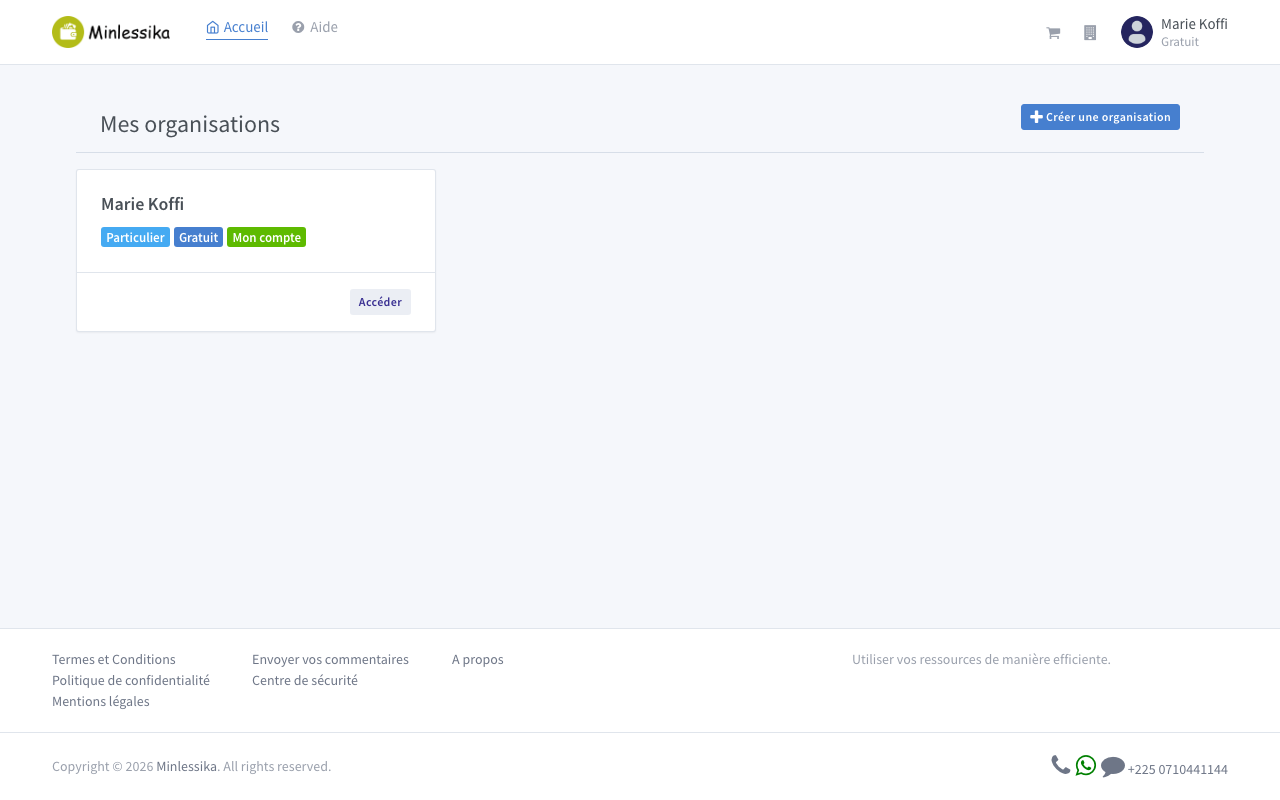
From any screen
The organization selector (building icon) in the header also lets you switch between your organizations and create a new one.
2. Fill in the organization
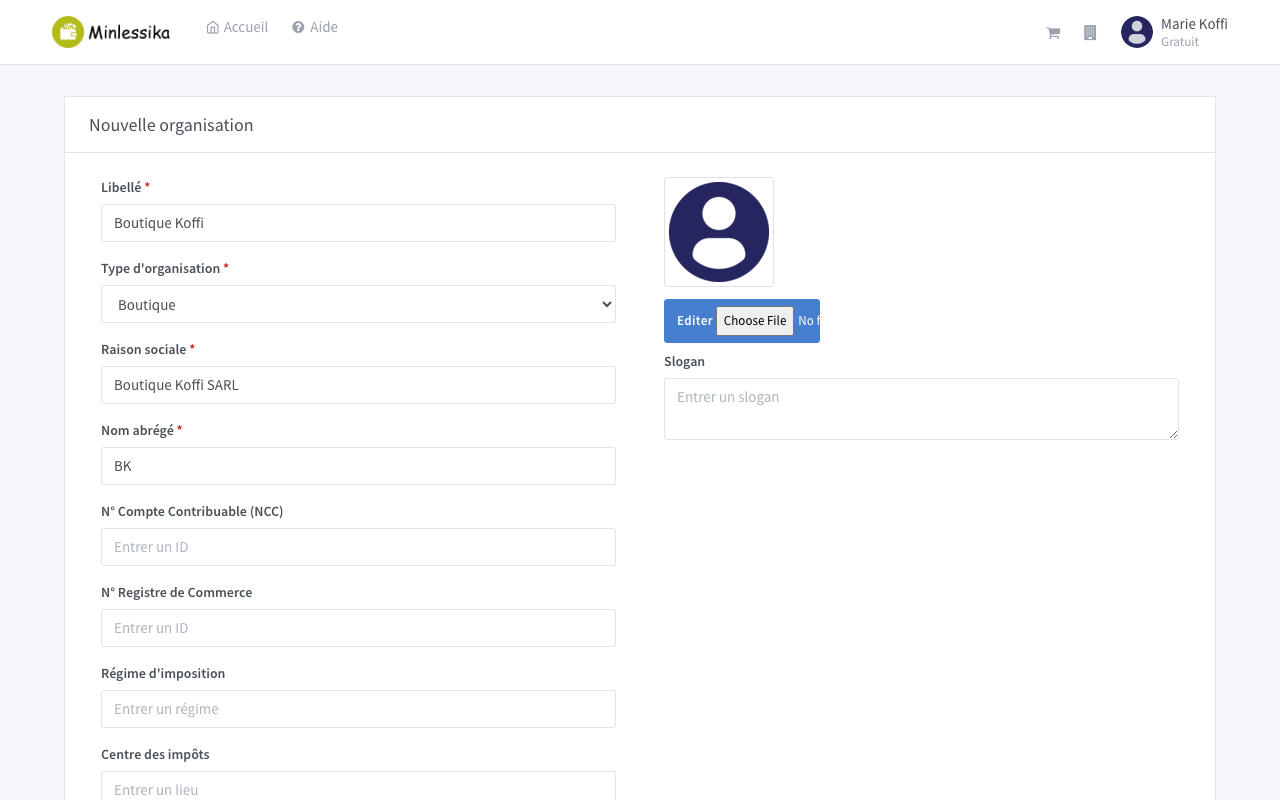
The Nouvelle organisation (New organization) form appears. Complete at least the required fields (marked with an asterisk):
| Field | Description |
|---|---|
| Libellé | The name under which the organization appears in Minlessika |
| Type d'organisation | The company's activity (shop, restaurant, pharmacy…) |
| Raison sociale | The legal name of the company |
| Nom abrégé | A short form of the name |
| Adresse ligne 1, Ville, Pays | The address of the head office |
| Adresse mail, Téléphone 1 | The organization's contact details |
| Fuseau horaire, Monnaie préférée | The regional settings |
The country defaults to Côte d'Ivoire and the currency to the CFA franc (XOF); adjust them if needed. The legal identifiers (NCC, trade register, tax regime…) are optional and can be filled in later.
3. Save
Click Enregistrer (Save). The message "L'organisation … a été créée avec succès !" (The organization … has been created successfully!) confirms the creation.
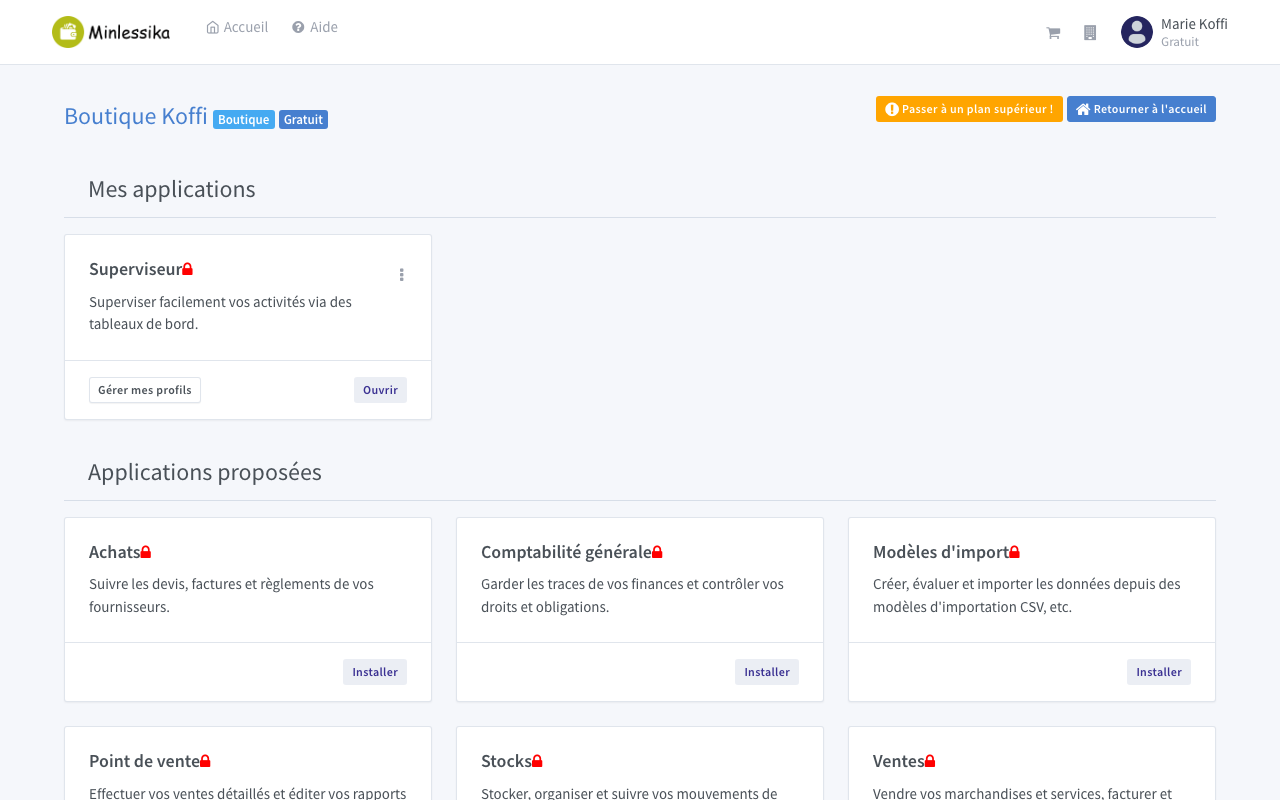
Your new organization immediately becomes the active one: you land on its dashboard, which shows your applications and the ones you can install. You are automatically an owner and a member of this organization.
What next?
Your company organization is ready. To bring your team on board, continue with Invite users; to add features to it, see Activate modules.
Changelog
- 1.1 (July 10, 2026): tutorial written with screenshots.
- 1.0 (July 9, 2026): document created.