Generate an invoice
An invoice is not written out of nothing: it is drawn from a sold purchase order or from an accepted quotation, which give it its customer, its seller, its payment condition and the base of its percentages. This guide generates it, picks its nature and validates it.
Prerequisites
- The
SALES.INVOICE.WRITEright to generate and validate an invoice,SALES.INVOICE.READto read the invoices of a document - A purchase order confirmed, partly delivered or delivered, not fully invoiced yet (see Create a purchase order); or an accepted quotation no order came out of (see Create a quotation)
Steps
1. Open the generation from the source document
On the record of the purchase order or of the quotation, press Generate an invoice.
The button does not show everywhere: on an order, it waits for the sale to be confirmed and for its Invoicing not to be complete already; on a quotation, it waits for the acceptance and vanishes as soon as the order is converted.
2. Pick the nature of the invoice
The Generate an invoice dialog opens on its Kind of invoice:
- Final invoice — the total of the document;
- Down payment as an amount and Down payment as a percentage;
- Advance as an amount and Advance as a percentage;
- Situation as an amount and Situation as a percentage;
- Balance invoice — what is left to invoice;
- Partial final invoice — the lines of the source document.
A kind measured on an amount asks for an Amount; a kind measured on a rate asks for a Percentage and its Base, prefilled with the net commercial of the document. The others ask for nothing: the server computes them.
Two natures exist on a source document alone
Balance invoice and Partial final invoice are only offered from a purchase order or a quotation. The direct creation, through Sales › Invoices › New invoice, does not offer them: they would have nothing to hang on.
3. Complete the header and generate
The same dialog asks for the Seller, required, the Customer and the Payment condition; the three come already filled from the source document. Description and Terms and conditions are left to you.
The Issue date, the Due date and the addresses are not asked here: the server dates and numbers the invoice itself. They open afterwards through Edit, on the record of the invoice.
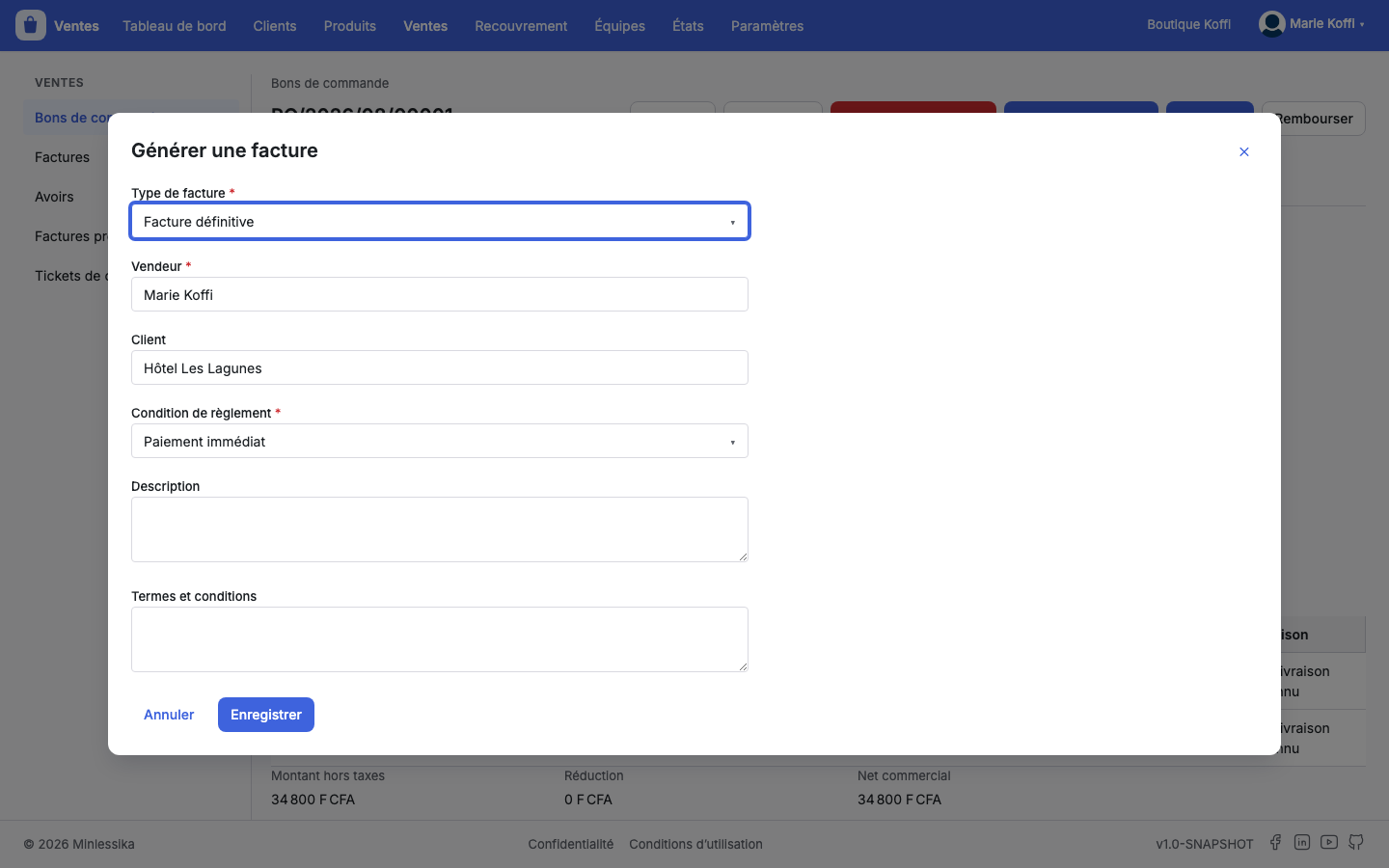
Confirm: the module writes the invoice and takes you to its record.
4. Complete the lines where the nature allows it
A Final invoice is completed by hand: Add a line opens the usual dialog there. A down payment, an advance or a situation is not completed — its amount holds on the single line the server writes. A Partial final invoice draws its lines from the source document; the choice of those lines is not offered by the screen yet.
5. Validate the invoice
Validate stops it for good, after confirmation. The invoice then joins the Invoices of the source document — Invoice, Nature, Issue date, Amount with taxes, Status — and its deadline joins Collection › Deadlines.
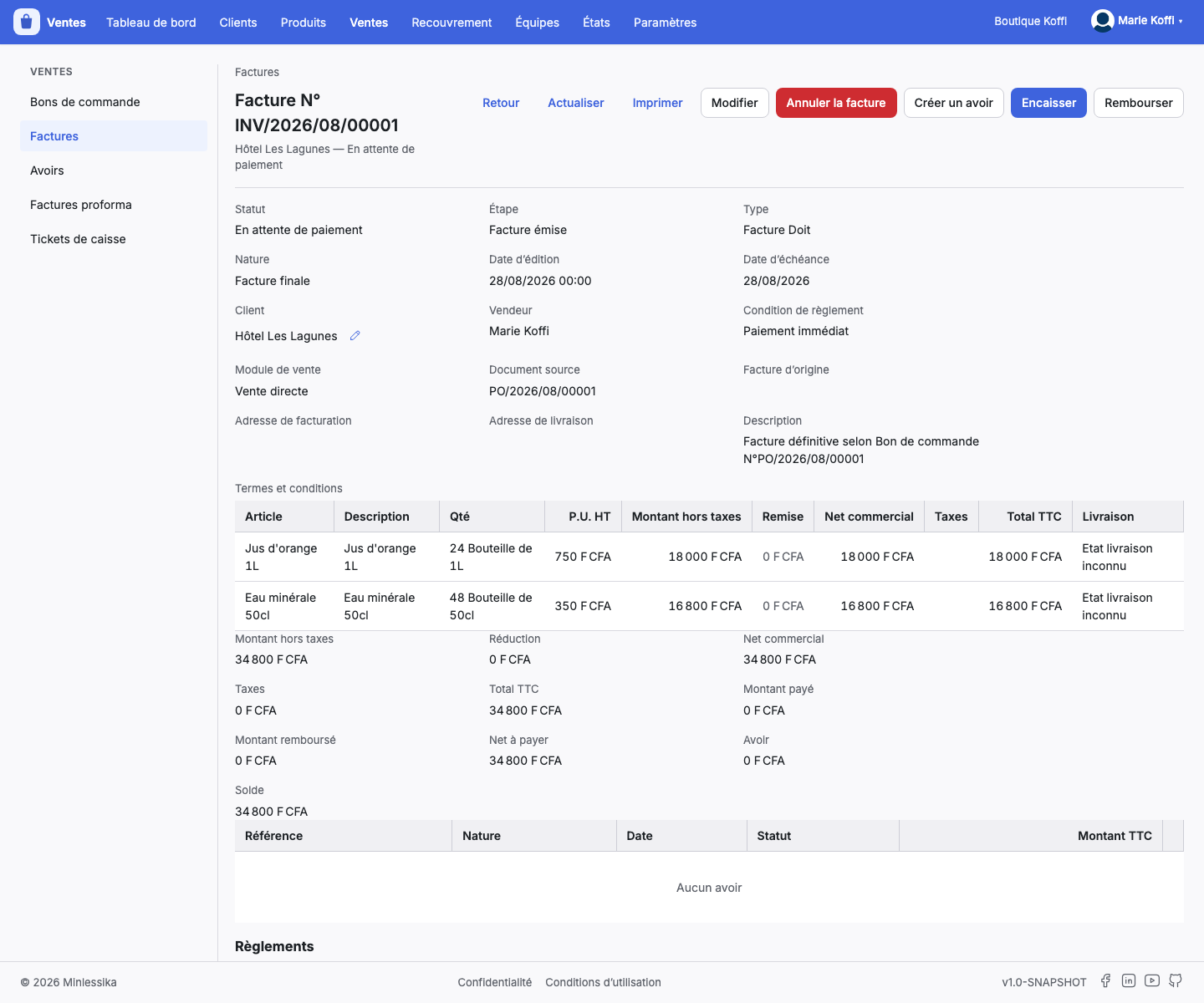
Once validated, an invoice is no longer deleted
Delete is only offered on a draft. A validated invoice is cancelled — Cancel the invoice — and the cancellation stays written in the history of the document. Prefer the credit note when it is the amount, and not the whole invoice, that must be taken back.
6. Follow the fiscal invoicing, where it is active
When your organization has fiscal invoicing, the record of a validated invoice carries a banner telling where it stands with the tax authority, and the buttons that go with it:
- Start compliance when the electronic compliance is still unknown;
- Transmit, or Transmit again after a rejection or a cancellation;
- Cancel the transmission while it is under way.
A rejection is shown with its Rejection reason.
What next?
- Create a credit note
- Create a purchase order
- Getting started with Sales — cashing the settlement
Changelog
- 1.0 (August 27, 2026): document created.