Create a quotation
The quotation you send a customer is called a proforma invoice in the module: it prices what the customer asks for without committing anything. This guide writes it, fills it line by line, sends it and records the answer of the customer.
Prerequisites
- The Sales module activated for your organization
- The
SALES.PROFORMA_INVOICE.WRITEright to write a quotation,SALES.PROFORMA_INVOICE.READto read it back - At least one seller in a sales team: the seller is required on the quotation (see Getting started)
- The products to price in the catalog, with their sales pricing
Steps
1. Open a new quotation
In the menu, Sales › Proforma invoices, then New proforma invoice. The button only shows to a profile that writes quotations.
The list itself is narrowed by text, by Status, by period — From, To — and by Customer; the filter you set lives in the address of the page, so a reload does not lose it.
2. Fill the header
The Create a proforma invoice dialog asks for:
- Kind — the list the server publishes; the first kind is offered by default;
- Seller — required; if you are yourself a seller of the module, your name is already there;
- Customer — searched among the contacts of the organization;
- Issue date — required, date and time, set on now;
- Expiration date — required: the date beyond which your pricing no longer holds;
- Description and Terms and conditions — what the quotation will tell the customer.
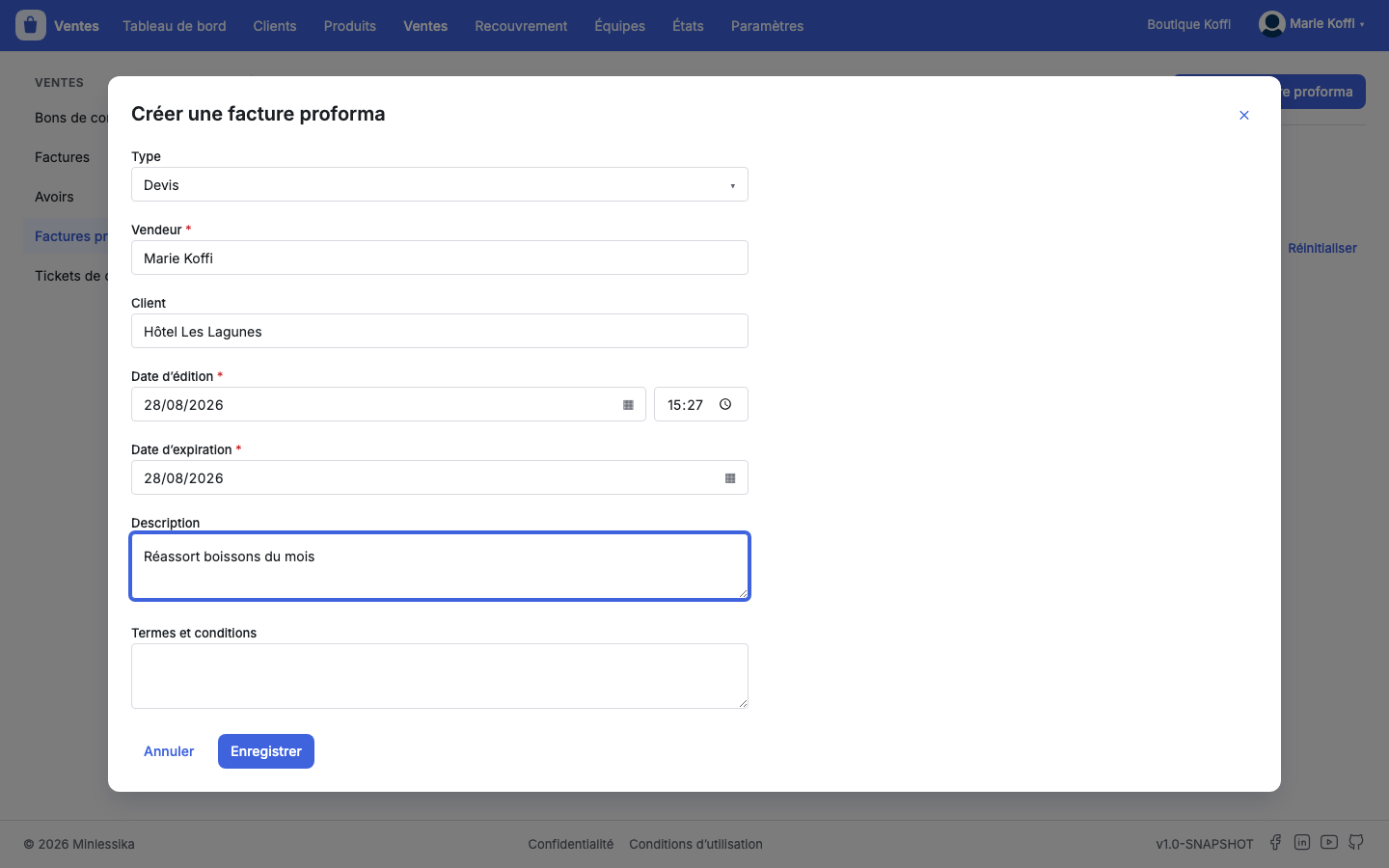
Save: the module writes the quotation and takes you straight to its record.
A quotation opens with no line
The form asks for no product: the lines are only written once the quotation exists, on its record.
3. Add the lines
On the record, Add a line opens Add a product line:
- Product — required; choosing it brings back its label, its description and its taxes, those of the customer if any is waived;
- Label and Description — editable for that quotation alone;
- Quantity — required;
- Unit price — locked on the tariff of the catalog, except for a product whose price is settled at the moment of the sale;
- Apply the discount automatically — ticked, the discount of the customer applies by itself; untick it to type the Discount by hand;
- Taxes — those of the product, to complete or to remove.
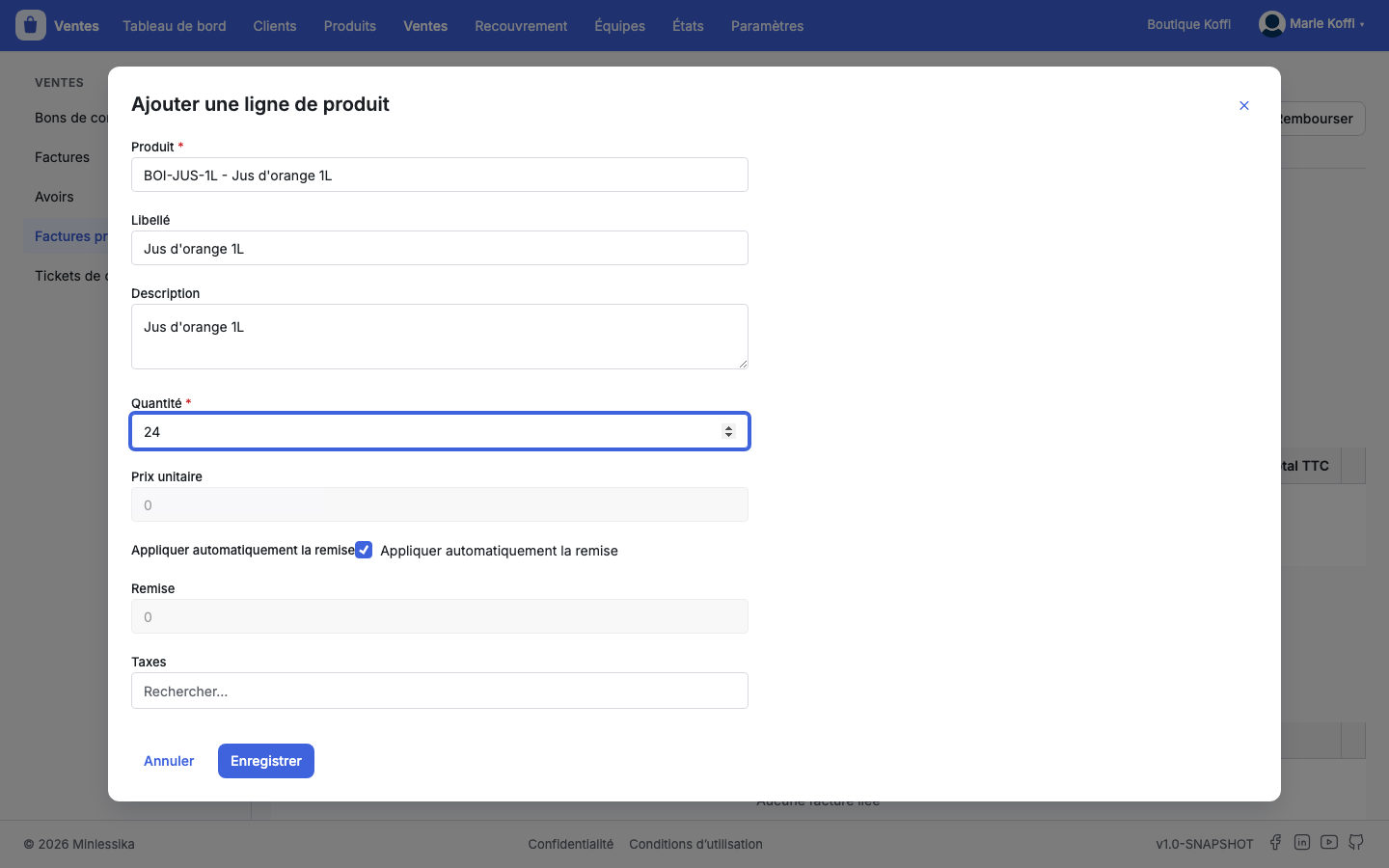
The bottom of the dialog shows what the server computes: Untaxed total, Net commercial, Tax amount and Total with taxes. You set no amount yourself.
The lines stack in the table of the quotation — Product, Description, Qty, Unit price, Untaxed amount, Discount, Net commercial, Taxes, Total with taxes — with the Edit and Remove actions, and the totals of the document are computed again under them.
4. Send the quotation
Send marks the quotation as gone to the customer; the module asks for confirmation before acting. Print draws the document to attach at any time.
The lines freeze on departure
Edit, Add a line, Remove and Delete are only offered on a draft. A quotation already sent is not rewritten: to change a price, cancel it and draw a new one.
5. Record the answer of the customer
On a quotation already sent, two buttons wait: Accept and Reject. The status follows the answer, and an accepted quotation then opens what comes next — Convert into a purchase order and Generate an invoice.
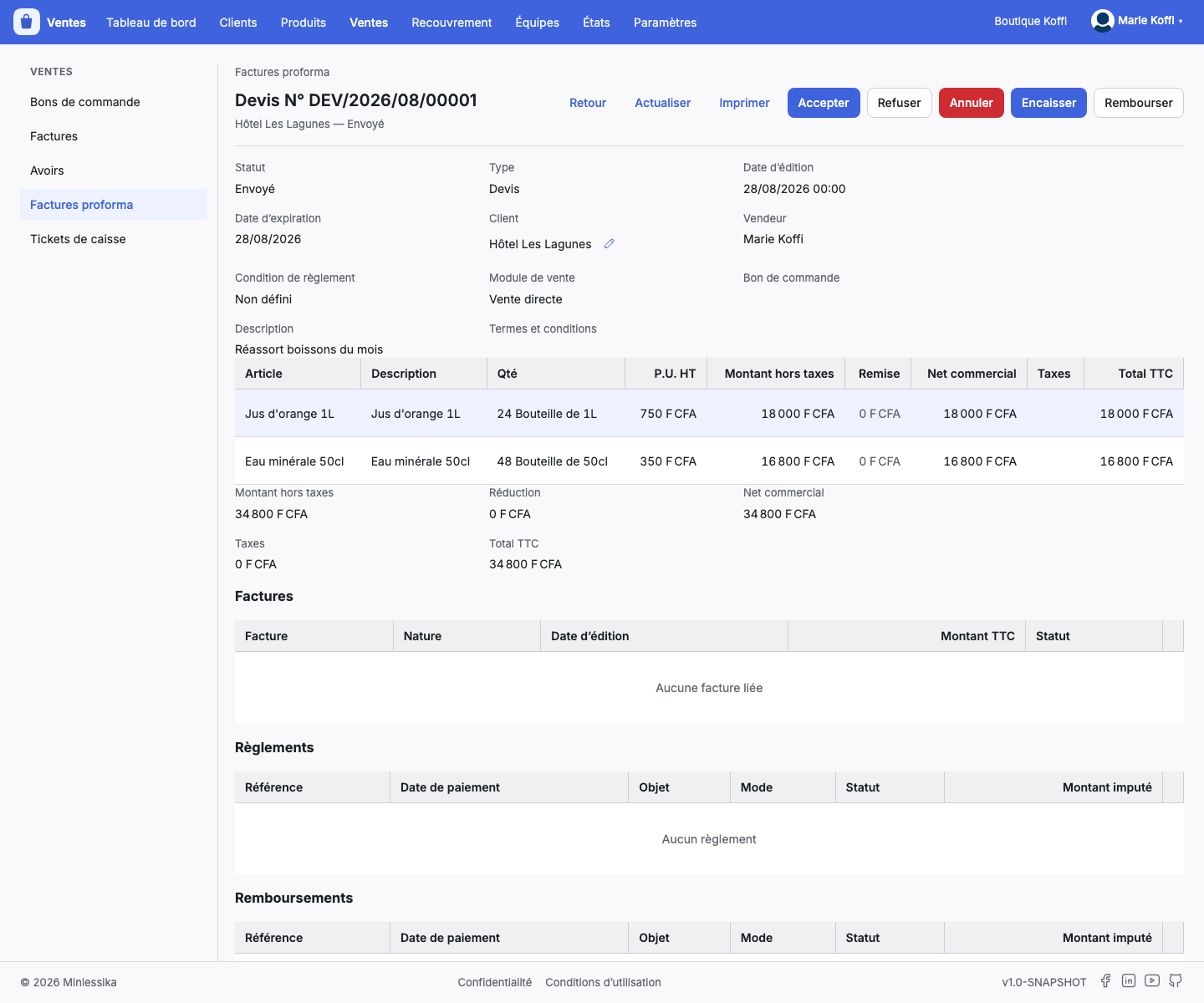
Cancel stays offered as long as the customer has not rejected it: an accepted quotation is still cancelled.
What next?
Changelog
- 1.0 (August 27, 2026): document created.