Generate the tracking report
The Stock tracking status tells what came in and went out over a period, item by item. It is the document you print for a meeting, export for an analysis, or keep as evidence in an audit.
Prerequisites
- The
STOCKS.REPORTING.READpermission - A warehouse selected in the header of the application
- The families, subfamilies and locations already in place, if you intend to filter
Steps
1. Open the screen
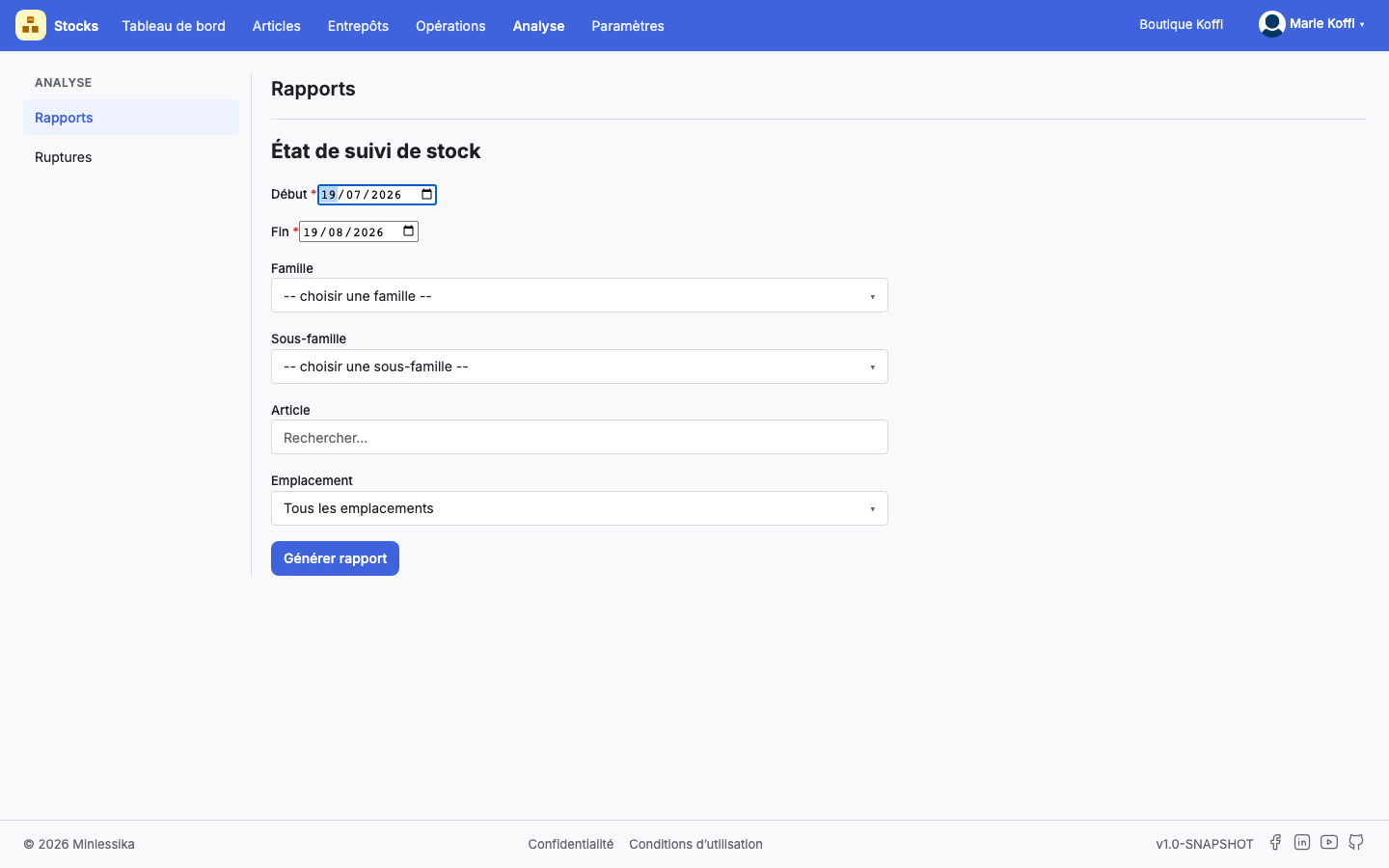
Open Analysis › Reports. The Stock tracking status section shows the form of the report.
2. Set the period
Start and End are mandatory and default to today. Without them, the report does not run: "Start date is a required field", "End date is a required field".
A period the right way round
An end earlier than the start is refused by the server: "The period is invalid". Check the order of the two dates before generating.
3. Narrow down, if needed
Four optional filters refine the report:
- Family
- Subfamily
- Item
- Location
A filter left empty is simply ignored.
One item axis at a time
Family, subfamily and item are mutually exclusive: choosing one clears the other two. This is deliberate — three competing axes would produce an empty report without saying so.
4. Understand the scope
The report covers the current warehouse, the one the header shows. A report without a location filter therefore covers every location of that warehouse, and only those.
Changing warehouse resets the location
The locations offered are those of the current warehouse. If you change it, the Location filter empties itself: a location from another warehouse would reduce the report to nothing.
5. Generate, print, export
Click Generate report. The preview opens with the PDF, ready to be printed. The Export to Excel button pulls the spreadsheet version out of it, and Close closes the preview. If the server cannot compose the document, the preview shows "Cannot generate the report".
What next?
Changelog
- 1.1 (August 19, 2026): screenshots added.
- 1.0 (August 18, 2026): document created.