Customize the fields of a model
Your invoices carry information the standard model does not foresee — a site number, an internal customer code — or you want to rename a column, make it required, compute it. All of that is set in the import mapping of the model.
Screen names are given in French
The Minlessika interface is available in French and in English. Each tab or button name is shown here as it appears on a French screen, with its English translation in parentheses.
Prerequisites
- A custom model — standard models cannot be changed
- The
SETTINGS.UPDATEpermission
Steps
1. Open the mapping
Open Paramètres › Modèles (Settings › Models), open your model, then, in the section of the flow you want (Facture or Avoir), click Mappage d'import (Import mapping). The page lists the columns of the file, their source and their formulas. Click Modifier (Edit) to change them.
2. Bind a field
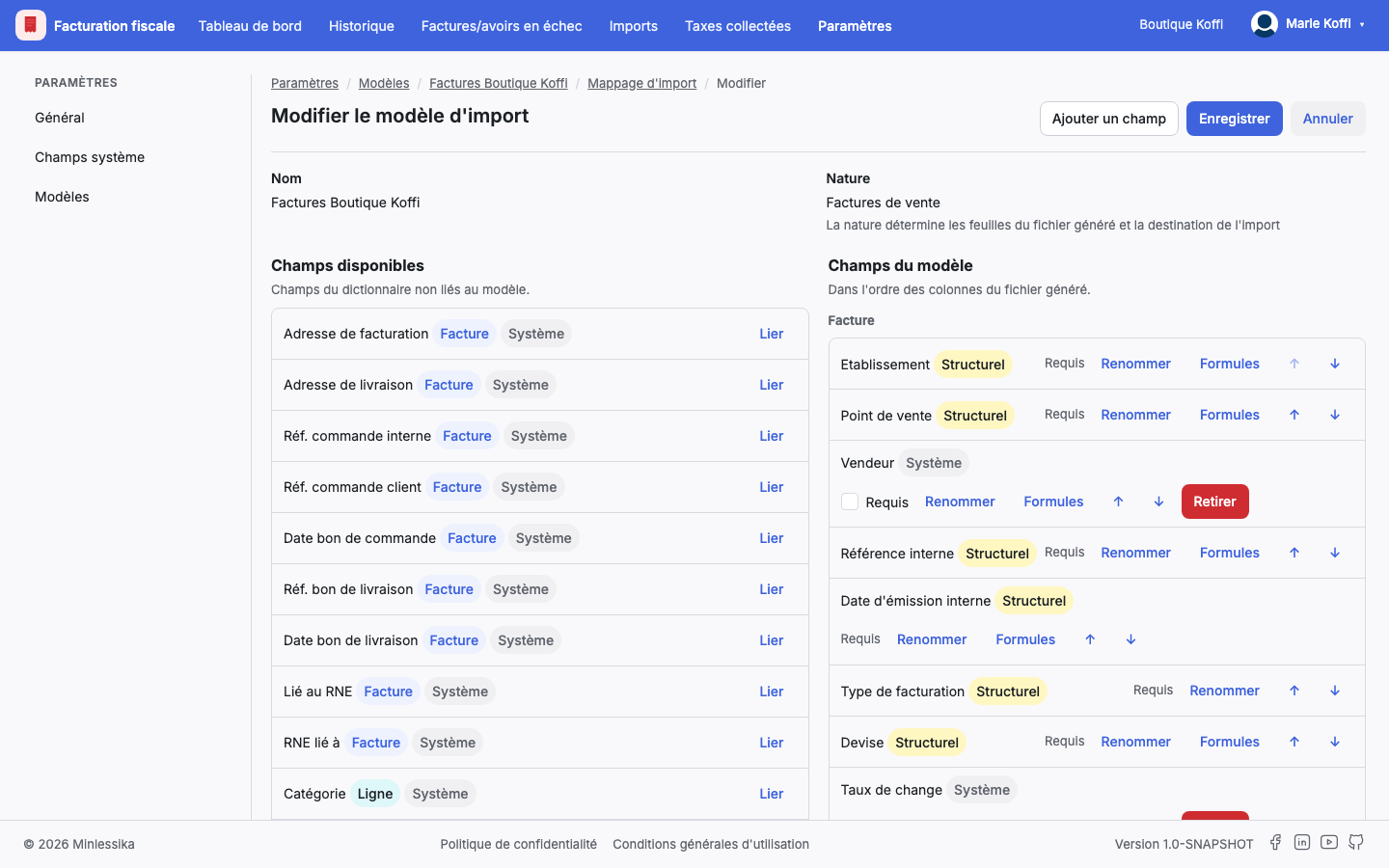
The editor shows two panels: Champs disponibles (Available fields) on the left — the fields the model does not bind yet — and Champs du modèle (Model fields) on the right, already carrying the default fields of the model's nature.
Click Lier (Bind) next to an available field: it joins the model, and one more column will appear in the generated file.
3. Add a field of your own
If no system field fits, click Ajouter un champ (Add a field) and define yours: its code, its label, its type and its scope — Facture (Invoice) if it describes the whole invoice, Ligne (Line) if it describes one of its lines.
That field belongs to this model alone: every model carries its own dictionary.
4. Set up each field
On the row of a bound field:
- Requis (Required) — the file will have to fill it in.
- Renommer (Rename) — gives the system field a label specific to this model, without touching the catalogue.
- Formules (Formulas) — opens the two formulas of the field (next step).
- Monter (Move up), Descendre (Move down), or drag and drop — change the column order of the generated file. A field only moves within its scope.
- Retirer (Remove) — unbinds the field from the model.
Structural fields are not negotiable
A field marked Structurel (Structural) is essential to reading the file: it stays required and cannot be removed.
5. Set formulas
The Formules (Formulas) button opens two rules, specific to the model:
- the règle de validation (validation rule) rejects a non-compliant value at import time — a negative amount, a date outside the period;
- the formule de calcul (calculation formula) fills the field from the others. The field then disappears from the file to fill in: the module computes it.
Both formulas are written using the other fields of the model as variables; the variable picker lists them.
6. Save
Click Enregistrer (Save). Until you do, the Modifications non enregistrées (Unsaved changes) banner stays up, and leaving the page asks for confirmation.
The module refuses to save a model without a name, without a single bound field, or carrying the same field code twice.
What next?
Regenerate the model file from the Fichiers modèles (Model files) section: its columns now reflect your mapping. Then import it.
Changelog
- 1.0 (August 1, 2026): document created.