Design a document template
The certified PDF carries your logo, your notices, your presentation. The template builder draws that page block by block, and the preview shows exactly the document the FNE will certify.
Screen names are given in French
The Minlessika interface is available in French and in English. Each tab or button name is shown here as it appears on a French screen, with its English translation in parentheses.
Prerequisites
- A custom model — standard templates cannot be changed
- The
SETTINGS.UPDATEpermission
Steps
1. Open the template
Open Paramètres › Modèles (Settings › Models), open your model, then click Template in the section of the flow you want.
The sheet in the middle mirrors the layout of the printing engine: three zones, En-tête (Header), Corps (Body) and Pied de page (Footer), on an A4 page or an 80 mm roll.
2. Drop blocks
The Ajouter un bloc (Add a block) palette offers four types:
| Block | Contents |
|---|---|
| Texte (Text) | Rich text, where values are inserted between curly braces — {company.name} |
| Image | The company logo, generated by the system |
| Champs (Fields) | Label/value pairs, each bound to a field of the model |
| Tableau de lignes (Line table) | The invoice lines, in columns |
Drag a block into the zone you want. To align two blocks side by side, drop the second on the + side strip of the first: they form a row, of at most four columns, whose widths you set.
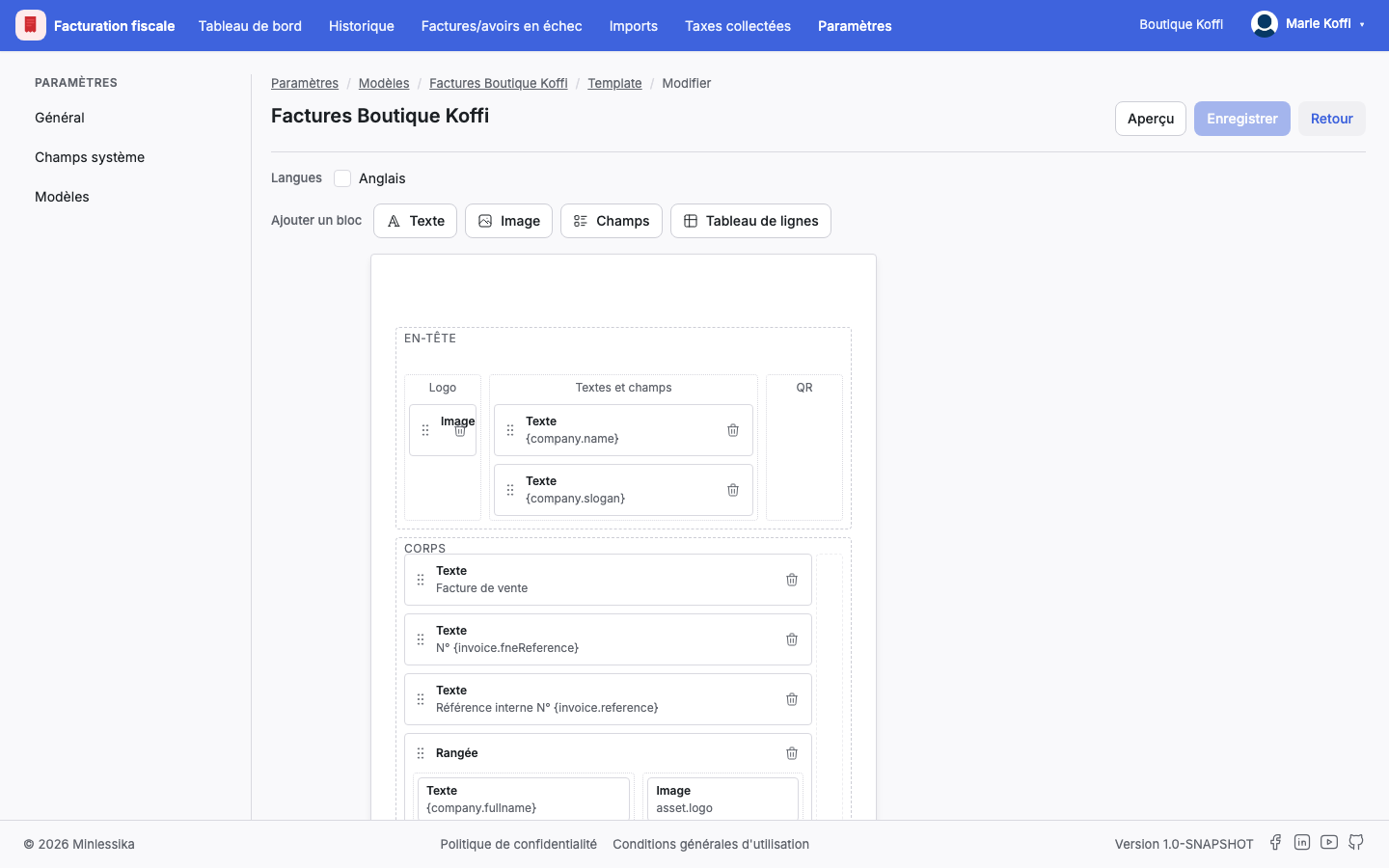
3. Set up a block
Select a block: the inspector shows its width, its height, its horizontal alignment, and its frame for a text block.
Inside a Champs (Fields) block, Ajouter un champ (Add a field) adds a line: you enter its libellé (label), pick its valeur (value) among the fields of the model, and its format — integer, decimal, money, percent or date. A field the model no longer knows shows as introuvable (not found).
Locked blocks stay
The fiscal notice, the FNE QR code, the totals, the tax summary, the amount in words and the page numbers are imposed by regulation. They cannot be removed and stay out of rows.
4. Write in several languages
Tick Anglais (English) in the Langues (Languages) section to add English to the template. Every text block and every label is then written in both languages.
The builder flags the blocks left without an English version: at print time, they would come out in French. The Aperçu en (Preview in) selector picks the preview language.
5. Check with the preview
Click Aperçu (Preview): the module produces the real PDF, with the production engine and sample data. This is not an approximation — it is the document as it will come out.
6. Save
Click Enregistrer (Save). The template gains a new version.
Already certified invoices do not move
Every certified invoice retains the template version that produced it. Changing the template alters no already issued document: reprinting an old invoice returns exactly what the FNE certified.
What next?
Changelog
- 1.0 (August 1, 2026): document created.