Run an inventory
An inventory confronts what the module believes it holds — the theoretical quantity — with what your teams count on the shelf — the counted quantity. At the end of the road, the module writes the gain and loss movements that align stock with the count, and keeps the trace of the variance.
Prerequisites
- The
STOCKS.INVENTORY.READpermission to read and export - The
STOCKS.INVENTORY.WRITEpermission to create, count, validate and adjust - A warehouse with internal locations
- An entry operation type and an exit operation type in that warehouse, to carry the adjustments
Steps
1. Create the inventory
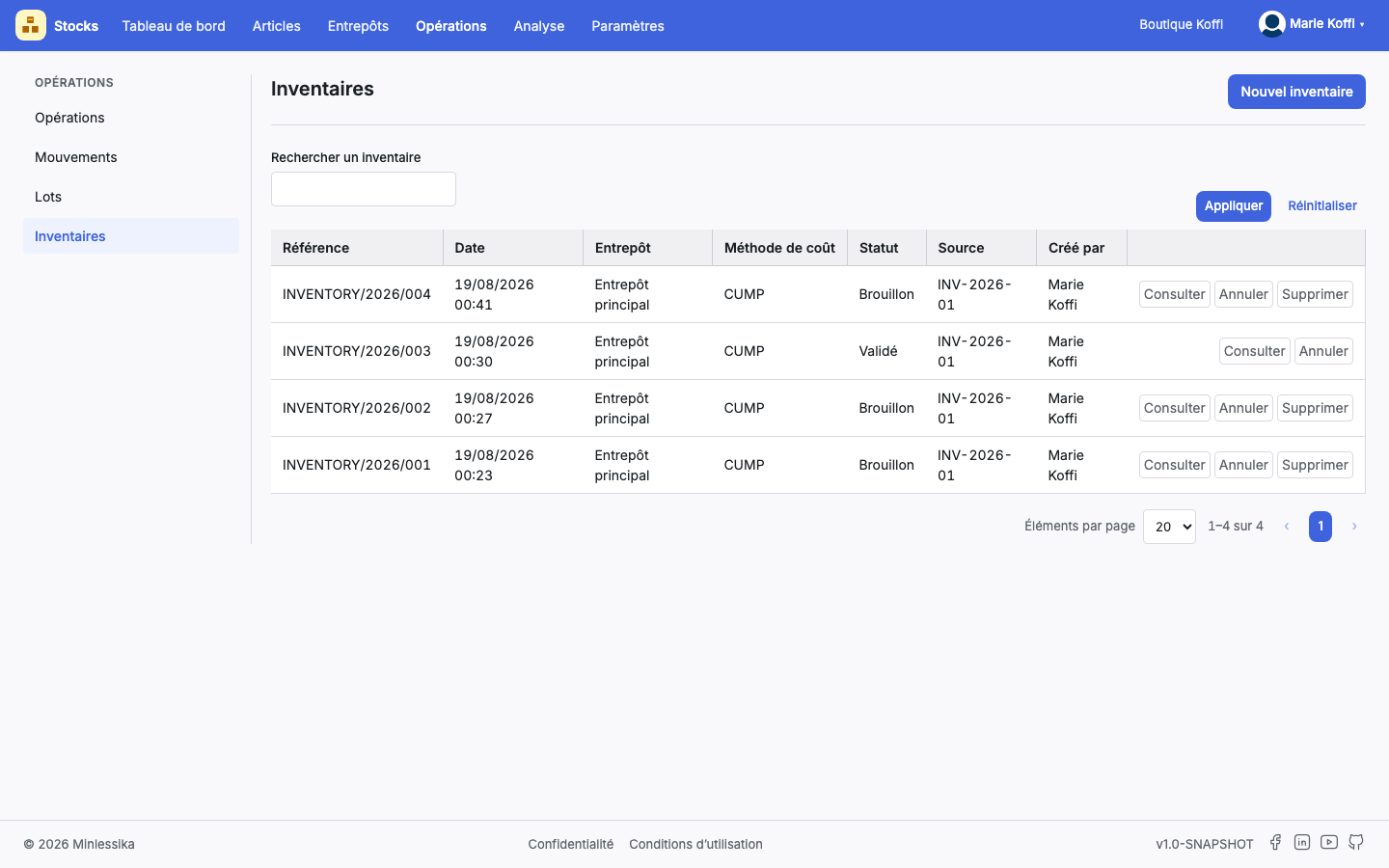
Open Inventories, then New inventory. Fill in the Warehouse, the Inventory date, the Costing method, the Type (Full, Partial, Cycle or One-off), the Periodicity (Monthly, Quarterly, Annual, Year-end or Exceptional), the Period start and the Period end, possibly a Source document, then tick the Locations to count.
Period and type are mandatory
A record without a type, without a periodicity or without a period is refused: "The period and type information are required". Likewise, at least one location is needed: "You must select at least one internal location".
The inventory is born in Draft, with one line per item/location pair, its theoretical quantity and its unit cost already calculated.
2. Follow the life cycle
The status decides what the record offers you:
- Draft and Counting — you can change the Properties, Add an item, Recalculate the theoretical quantities, enter and process the lines, then Validate.
- Validated — the lines freeze; Adjust the stock remains.
- Closed — the inventory no longer moves; two tabs are added, Adjustment movements and Cost history.
- Canceled — you can Restore it from the list.
An inventory is only cancelled in Draft or Validated ("The inventory cannot be canceled in its current status") and only deleted in Draft ("You cannot delete a validated or closed inventory").
3. Count the lines
Open the Lines tab. Each line shows the Item, the Packaging, the Location, the Batch (under FIFO costing), the Unit cost, the Theoretical quantity, the Actual quantity, the Variance, the Value variance and the State, Processed or Not processed. The filters narrow the list down to a family, a subfamily, a location or a state.
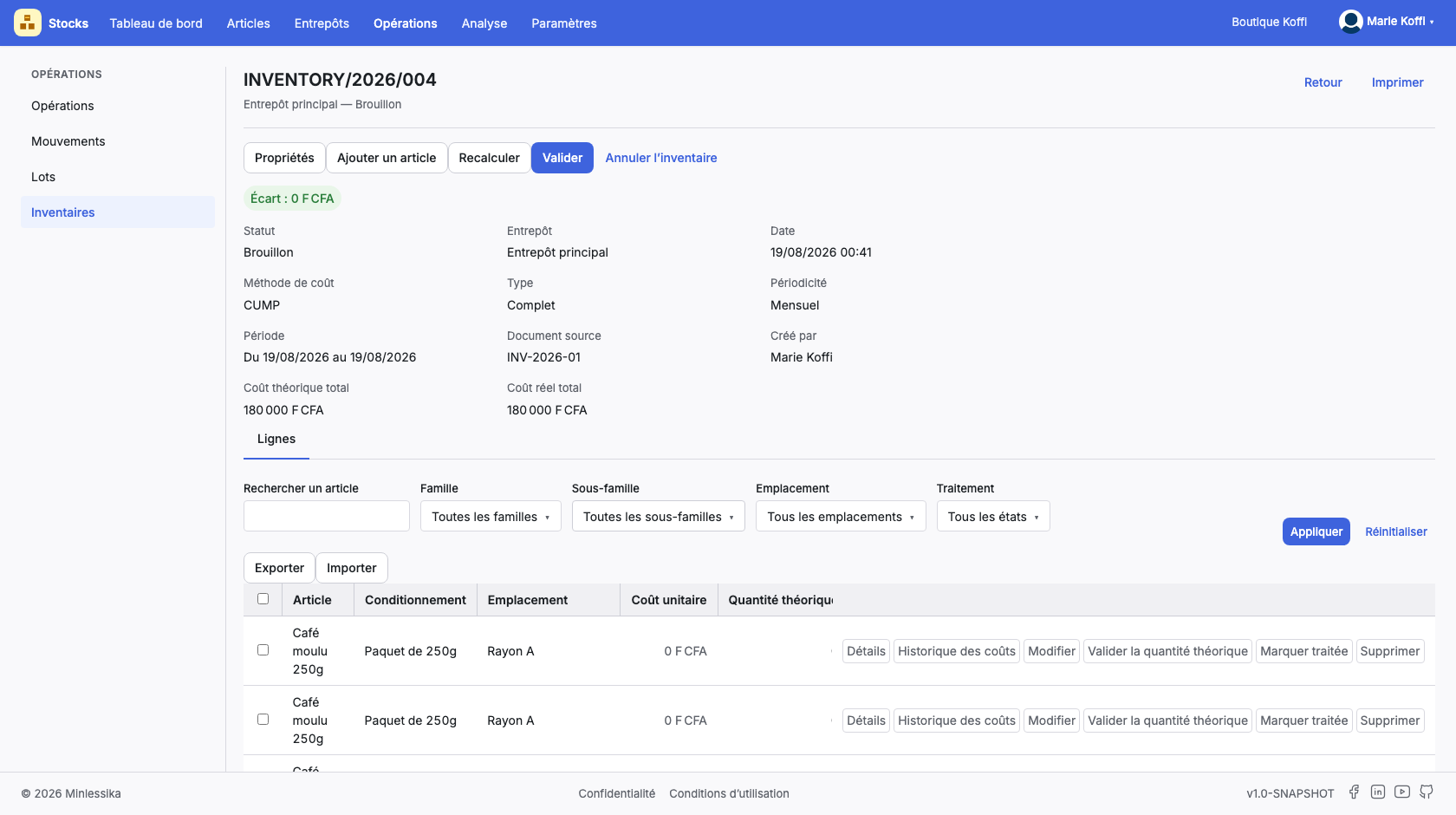
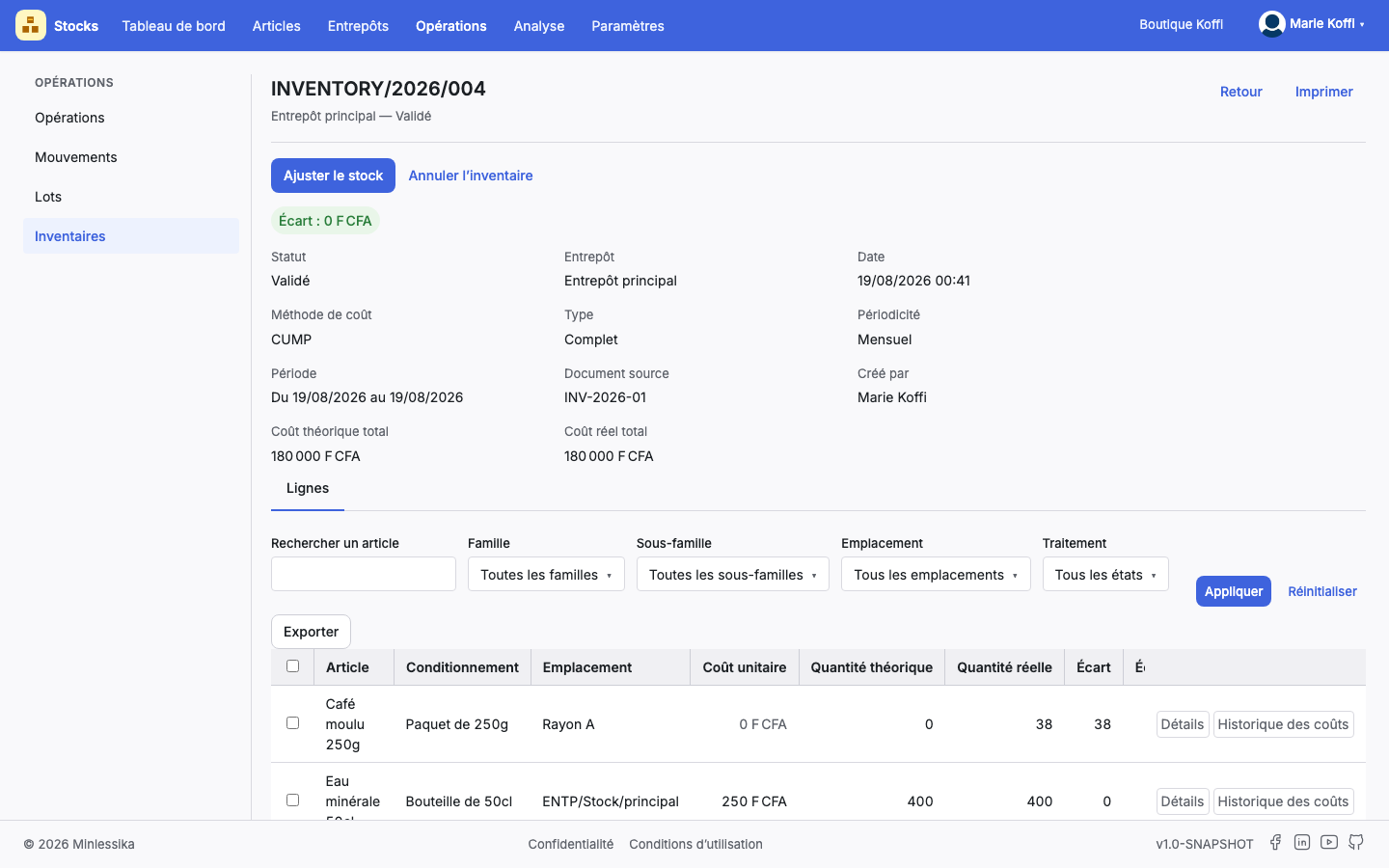
On a line, Edit opens the entry form: Counted quantity, Cause of the variance, Adjusted value and Stock condition (New, Used, Broken, Unsaleable, Sold out). Save and process chains the entry and the processing.
Sold out means zero
Declaring a counted quantity greater than zero on sold-out stock is refused: "The real quantity cannot be > 0 when the state is Out of stock". Count zero, or change the condition.
4. Process and unprocess
A counted line stays inert as long as it is not processed: this is the mark that says "this count is settled". Use Mark as processed on a line, Validate the theoretical quantity to keep the theoretical figure as it is, or the multiple selection and Mark as processed. Mark as not processed goes back as long as the inventory is not validated — afterwards, the module refuses: "A line cannot be processed or unprocessed after validation".
Splitting a line
One line can be cut in two, for instance to separate a new share from a broken one. The split quantity must stay strictly between zero and the theoretical quantity of the line, failing which: "The split quantity must be > 0 and < the theoretical quantity".
5. Export and import the lines
Export downloads the lines in XLSX format, under the name inventory-lines.xlsx: this is the file your teams fill in on the ground. Import sends it back to the module, which takes over the counted quantities.
A faulty import tells you where
The module stops at the first cell it cannot read and names it: "Invalid inventory file at line … for column …". Correct the reported cell and import the file again.
6. Validate the inventory
Click Validate. The confirmation states the rule: "The lines that are not processed and whose theoretical quantity is positive are processed automatically, and the others are deleted." The module then recalculates the theoretical and actual costs, line by line then as a total.
At least one processed line is needed
If the cleanup leaves nothing, validation is refused: "The inventory must hold at least one processed line". Process at least one line before validating.
7. Adjust the stock
On a validated inventory, Adjust the stock writes the missing movements: one entry operation per location where the count exceeds stock, one exit operation per location where it falls short, both validated and executed, with the label "Inventaire" followed by the reference. Lines without a variance produce nothing.
The adjustment closes the inventory
As the confirmation announces, "The gain and loss movements are recorded and the inventory is closed". A closed inventory is no longer changed ("A closed inventory cannot be edited"), no longer replayed ("A closed inventory cannot be executed") and not reopened ("A closed inventory cannot be reopened"). If the warehouse lacks an operation type to carry the variances, the module answers "Adjustment operation types not found for inventory …": create them and start again.
8. Read the cost history
An adjustment that changes the value of an item leaves a trace. The Cost history tab of the closed inventory lists, by date, the batch, the item, the Old cost, the New cost and the Author. On a line, the Cost history action opens the same reading for that single item.
What next?
Changelog
- 1.1 (August 19, 2026): screenshots added.
- 1.0 (August 18, 2026): document created.