Inventory
The Inventory module keeps the state of your goods, warehouse by warehouse and location by location. Everything that comes in, goes out or moves around goes through an operation; every executed operation writes movements, feeds costed batches, and updates the quantities you read on the dashboard.
Who is it for?
Any organization that holds goods and wants to know, at any moment, what it has, where, in what quantity and at what value: retail, distribution, catering, workshop, pharmacy.
Prerequisites
- The Products module installed: it holds the catalog, and the Inventory module only tracks the items declared as storable
- The Inventory module installed for your organization (see Activate modules)
- A profile opening at least one screen of the module (see Permissions)
On installation, the module creates the Main warehouse, the virtual supplier, customer and inventory loss locations, and picks WAC as the costing method. Everything else — your locations, your operation types — is yours.
What the module does
- Track your quantities by warehouse and by location, with the minimum, safety and maximum thresholds of each item
- Record your entries, your exits and your internal transfers as operations that go from draft to execution
- Cost what you hold: every entry opens a batch at its cost price, every exit draws from it, in FIFO or in WAC
- Count your locations, compare the counted quantity against the theoretical one and adjust the stock on the variance found
- Analyze your activity: dashboard indicators, movements, out-of-stock items and the Stock tracking status report
The screens
The module menu gathers its screens in six sections:
- Dashboard — the indicators and the operation shortcuts
- Items — Items, Families, Subfamilies, read-only
- Warehouses — Warehouses and Locations
- Operations — Operations, Movements, Batches, Inventories
- Analysis — Reports and Stockouts
- Settings — General and Operation types
One current warehouse, shared by every screen
The top bar carries a Warehouse selector: you answer once where you work, and the dashboard, the locations and the operations follow. Your choice is remembered, from one session to the next and from one workstation to another. If your organization has a single warehouse, the selector does not show up: there is nothing to choose.
The dashboard
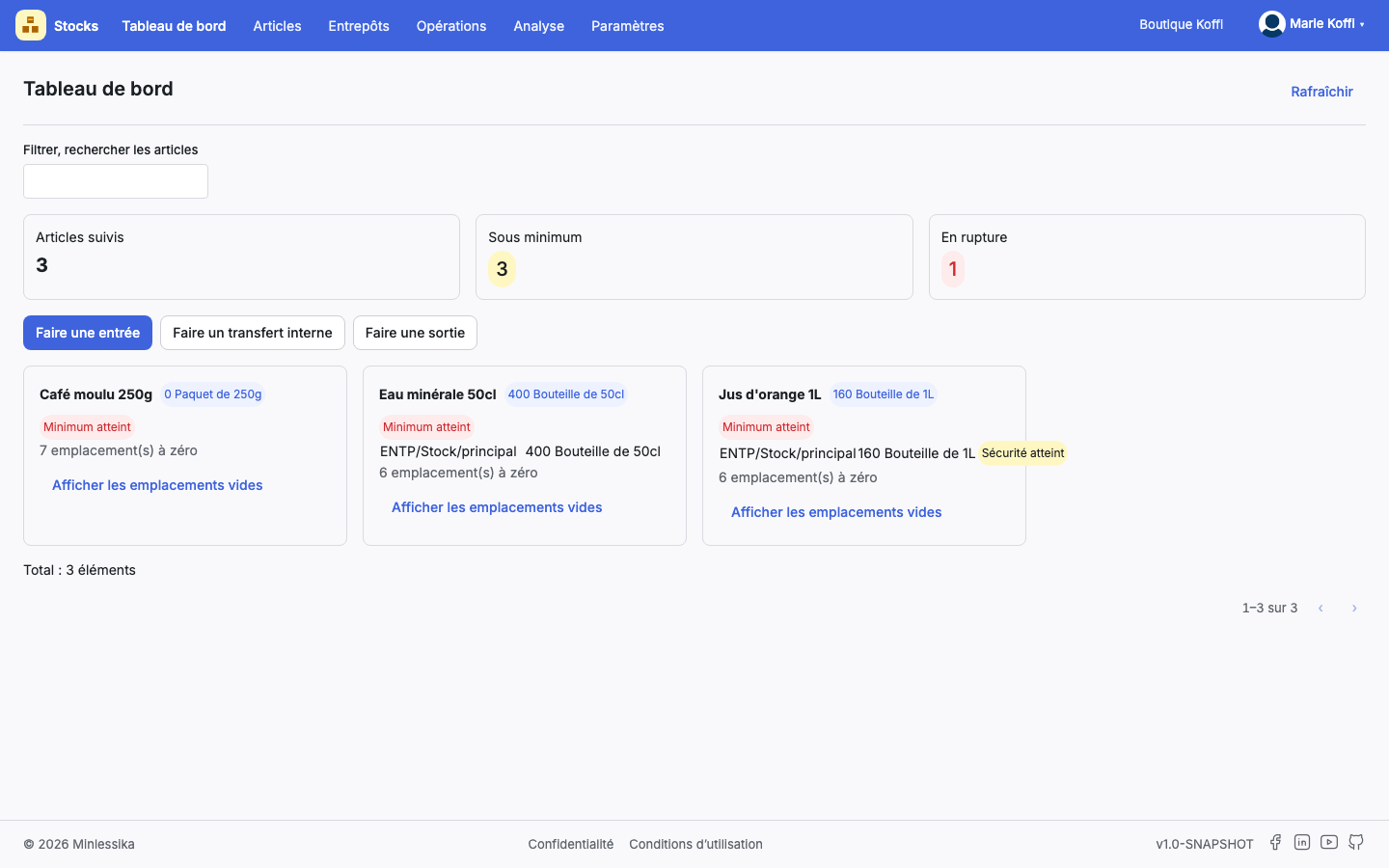
The home screen of the module counts three indicators on the current warehouse — Tracked items, Below minimum, Out of stock — then shows one card per item, with the quantity held in each location and the most severe alert it raises: Minimum reached, Safety reached or Maximum reached.
Three shortcuts open an operation there without going through the menu: Record an entry, Record an internal transfer and Record an exit.
Where to start?
Follow the Getting started tutorial: you will discover the dashboard, create a location and record your first stock entry.
Contents
- Getting started
- How-to guides: Browse the catalog, Organize a warehouse, Record an entry, Run an inventory
- Concepts
- Reference: Dashboard indicators, Permissions, Error codes
Changelog
- 1.1 (August 19, 2026): screenshots added.
- 1.0 (August 18, 2026): document created.