Configure automatic collection
Your management system produces invoice files. Rather than uploading them one by one, drop them on an SFTP server or in an Azure container: the module fetches them, imports them and submits them to the FNE on its own.
Screen names are given in French
The Minlessika interface is available in French and in English. Each tab or button name is shown here as it appears on a French screen, with its English translation in parentheses.
Prerequisites
- The
SETTINGS.UPDATEandBACKUP.CONFIGUREpermissions - Access to the storage: SFTP host and account, or Azure storage account
- A model matching the files you will drop
Steps
1. Enable collection
Open Paramètres › Général (Settings › General). Two sections govern collection: Collecte SFTP (SFTP collection) and Collecte Azure Blob (Azure Blob collection). Click Activer (Enable) in the one you need, then Configurer (Configure).
2. Fill in the connection (SFTP)
Enter the host, the port, the user and the password, then the three folders:
| Folder | Purpose |
|---|---|
| Dossier de travail (Work folder) | Where the module puts the files being processed |
| Dossier de succès (Success folder) | Where the files imported without error land |
| Dossier d'erreur (Error folder) | Where the refused files land |
Finally state the expected type de fichier (file type) — CSV, XML or JSON — and the type de facturation (invoicing type). Excel is not offered here: it serves the manual import alone.
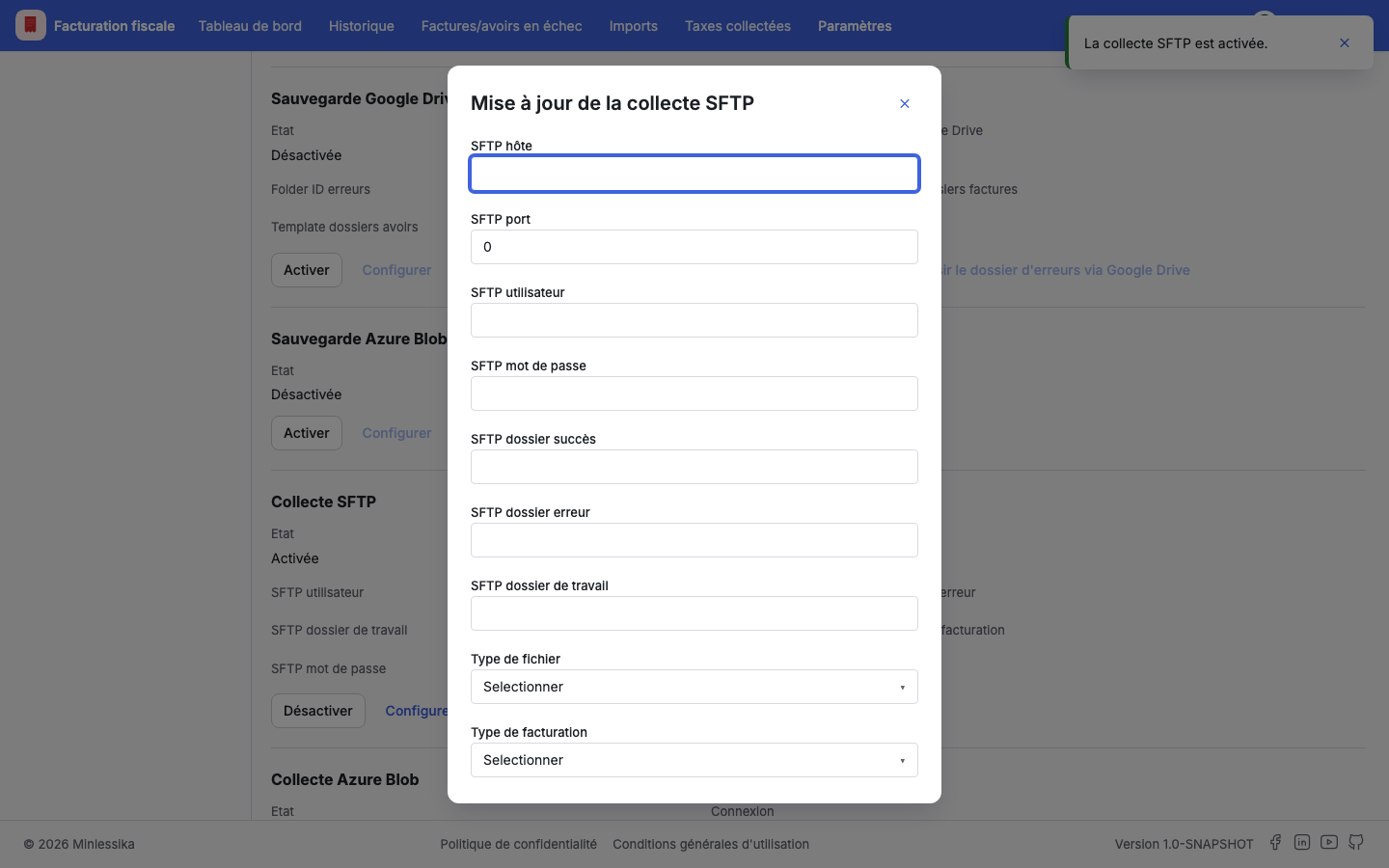
3. Or fill in the connection (Azure Blob)
Enter the storage account, the application ID, the tenant ID and the secret, then the three containers: inbound, processing and rejection. The Tester la connexion (Test connection) button checks the access before you go further.
4. Drop your files
Drop your files in the inbound folder or container. The module collects them at regular intervals, imports their contents and submits the documents to the FNE.
One document per file
In CSV, XML and JSON, a file carries one invoice, or one credit note, and only one. The module refuses a file carrying none, and a file carrying several:
Le fichier porte 3 avoirs (AV/2026/0001, AV/2026/0002, AV/2026/0003)
alors qu'il ne doit en porter qu'un seul
If your system exports by batch, split before dropping: one file per invoice, one file per credit note. Nothing stops you from dropping a thousand at once — the module handles them one by one.
Gathering several documents in a single file exists in Excel only, hence in the manual import.
Dates are written in ISO
In CSV, XML and JSON, a date is written yyyy-mm-dd — 2026-12-25, not 25/12/2026. The slashed shape stays with Excel workbooks, filled by hand.
A file keeping the old shape is refused, and says so:
« Date d'émission interne » doit désormais être une date aaaa-mm-jj
et non jj/mm/aaaa
So set your system's export to ISO. The other expected formats — numbers, booleans — sit in the reference.
The file name does not matter
The module recognizes a file by the model marker written in the file itself — a legend sheet for Excel, a first #model: line for CSV, an attribute on the root for XML and JSON. So there is no naming convention to respect: generate your files from the Fichiers modèles (Model files) section of the model, and the marker is already there.
5. Track the imports
Collected documents appear under Imports and in the Historique des transmissions (Submission history), with the SFTP or Azure Blob Storage source. Refused files go to the error folder, and the matching import details the reason.
Credit notes wait for their invoices
A credit note can only be certified after the invoice it corrects. The module therefore handles the invoices first, then the credit notes, waiting for the certifications to come back. Drop both together without worrying about the order.
What next?
- Configure external PDF backup, for the reverse trip
- Replay a failed submission
Changelog
- 1.1 (October 1, 2026): wording made precise — the module collects the files.
- 1.0 (August 1, 2026): document created.