Create a customer and grant discounts
A customer of the Sales module is first a contact of your organization — a person or a company — you decide to sell to. This guide turns it into a customer, reads its record, grants its discounts and its prices, and exempts it from what it does not owe.
Prerequisites
- The Sales module activated for your organization
- The
SALES.CUSTOMER.WRITEright to write a customer,SALES.CUSTOMER.READto read one back - The contact to turn into a customer, where it already stands among the contacts of the organization
Steps
1. Browse the customers
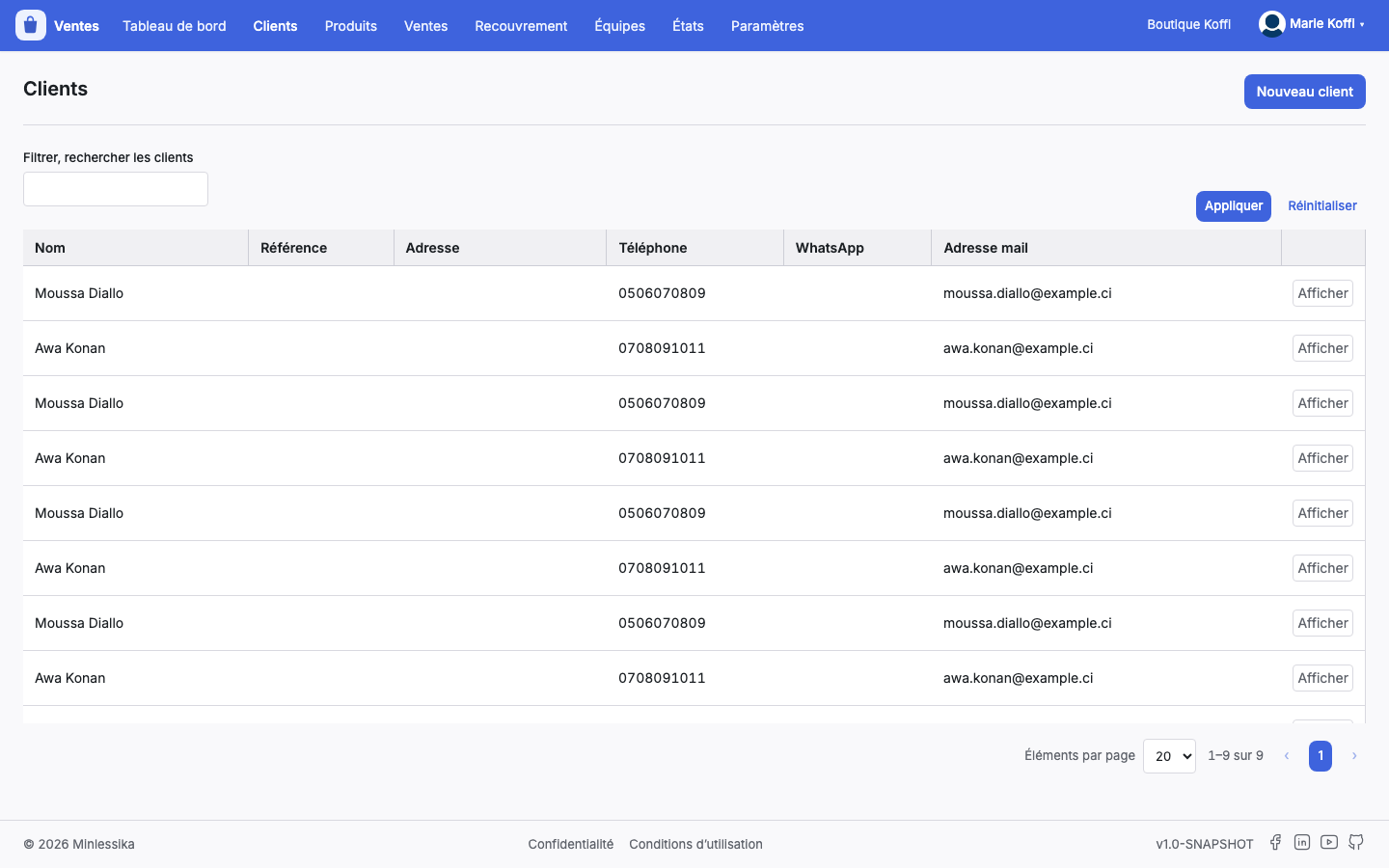
In the menu, Customers. The list gives, for each of them, its Name, its Reference, its Address, its Phone, its WhatsApp and its Email; Open shows its record.
The Filter, search the customers box is the only filter of the screen; what you put in it holds in the address of the page, so a reload does not lose it.
2. Turn a contact into a customer
New customer opens Choose the contact to turn into a customer. The button only shows to a profile the module lets write a customer.
The dialog lists the contacts of the organization — Name, Nature, Phone, Email — that Filter, search the contacts narrows. Choose turns the contact into a customer and takes you straight to its record.
3. Or create the contact along the way
Where the contact does not exist yet, the same dialog offers Create a person and Create a company: the contact is born there, and the module turns it into a customer right after.
- A person asks for its Last name, its First names, its Civility, its Birthday, its Year of birth, its Place of birth, its Sex, its Occupation, its Shoe size, its Height, then its address;
- a company asks for its Corporate name, its Tax system, its Trade name, its Abbreviation, its Taxpayer account number, its Trade register number, its Headquarters, then its address.
Your organization rules those fields
The module reads the field policy of the contacts before drawing the form: a field your organization hides does not show, a field it demands refuses to stay empty — This field is required — and a field it renames carries your word. A contact born in a sale therefore obeys the same rules as a contact born anywhere else.
4. Read the record of the customer
The record opens on the name of the customer, then its Nature, its Reference, its Address line 1, its Phone 1, its WhatsApp and its Email.
Three cards sum up its purchases: the Total of what it bought, the Paid amount and what is Left to pay. Those are sums of the server, never a computation of the screen.
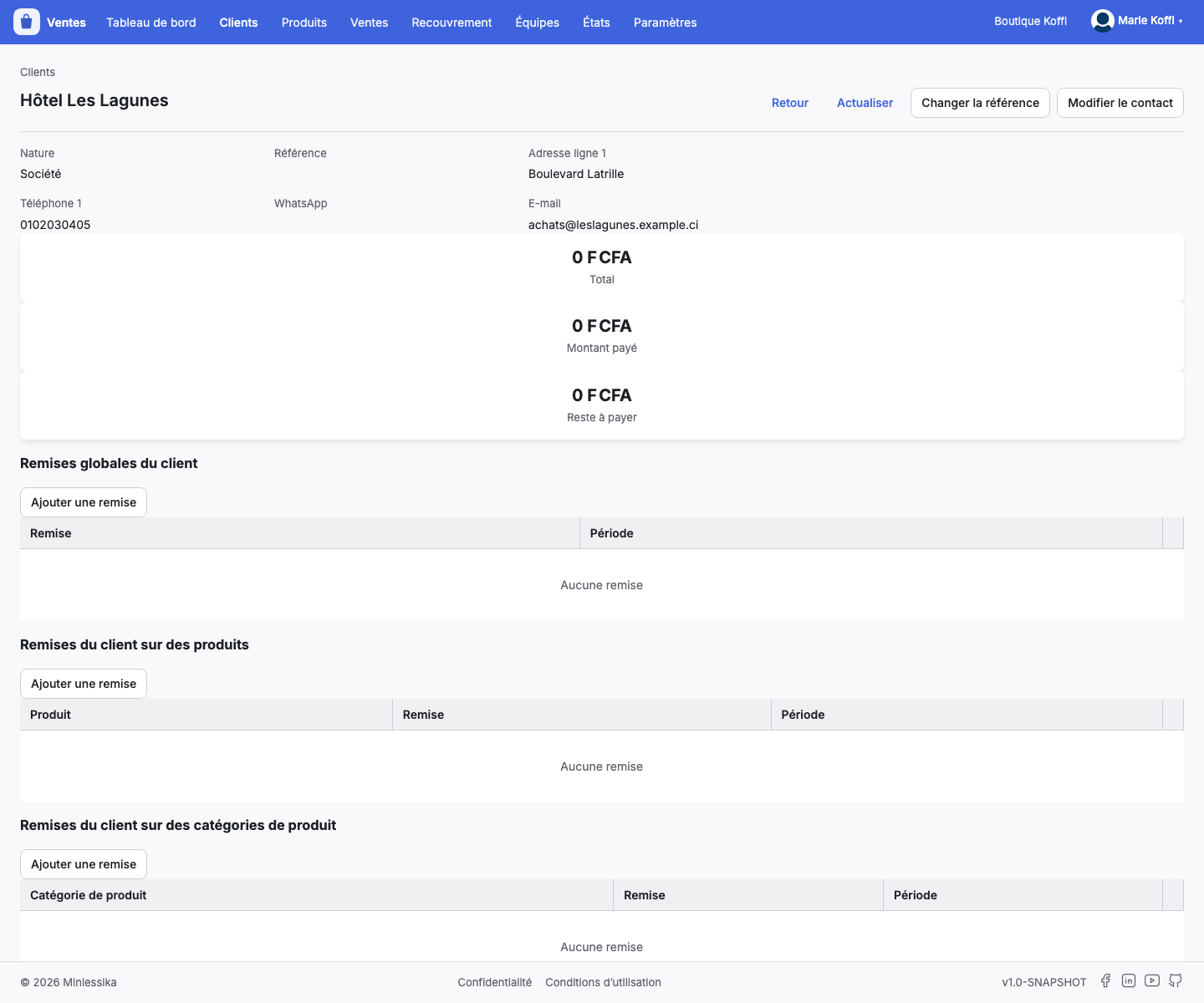
Change the reference opens Change the reference of the customer: the reference is required, and it is the one your deadlines are filtered by.
5. Grant the discounts
Four sections follow one another under the cards, and each of them is filled the same way — Add a reduction, then Edit and Remove on every row:
- Global reductions of the customer — what it gets on everything it buys;
- Reductions of the customer on products — the reduction holds for the Product you name;
- Reductions of the customer on product categories — the reduction holds for the Product category you name;
- Special prices of the customer — no longer a reduction but an Amount, the price that Product is sold to it at.
A reduction asks for its value — Reduction — and its Value type, as an amount or as a percentage. Apply the reduction over a period opens the Start date and the End date; without it, the reduction does not expire.
Editing a reduction does not move it
The module writes a reduction under the product or the category you named, and offers no way to move one. Naming another product while editing a reduction writes a second one and leaves the first where it was: remove it instead, and grant a new one. The same rule holds for a special price.
6. Exempt a tax
Taxes the customer is exempted from lists what it is spared — Full name, Short name, Value. Pick a Tax, then Exempt the tax; Remove takes the exemption back.
The exemption follows the customer into the documents: a quotation, order or invoice line carrying that product no longer claims that tax from it.
7. Correct the contact
Edit the contact, on the record, reopens the form of its nature — person or company — and saves the contact itself.
The same form opens from the documents: on the record of a purchase order, of an invoice or of a cash receipt, a pencil stands beside the Customer, the Beneficiary and the Performer as soon as a contact stands behind — never beside an anonymous party — and the document is read again once the contact is rewritten.
A customer is not deleted here
The screen turns a contact into a customer and corrects that contact; it removes it neither from the customers nor from the contacts of the organization.
What next?
- Price a product for sale — the other end of the discounts and of the special prices
- Create a quotation
- Getting started with Sales
Changelog
- 1.0 (August 27, 2026): document created.