Import an Excel invoice file
You have invoices to certify: start by importing them into the module from the Excel workbook a model generated.
The interface is in French
The Minlessika interface is available in French and in English, but the screenshots below are in French. Each tab or button name is shown here as it appears on a French screen, with its English translation in parentheses.
Prerequisites
- The Fiscal invoicing module activated for your organization
- A model matching your invoicing — classic, construction/telecom, distribution…
- The
IMPORT.CREATEpermission
Steps
1. Get the workbook of the model
Open Paramètres › Modèles (Settings › Models), open your model, then, in the Fichiers modèles (Model files) section, click Excel next to the Facture (Invoice) flow. The generated workbook carries exactly the columns of the model mapping, and the internal marker identifying it.
2. Fill in the workbook
Fill in one row per invoice line: rows sharing the same Référence Facture (Invoice reference) form a single invoice. The Légende (Legend) sheet recaps the columns, which of them are required, and the allowed values of the enumerated ones — whose meaning the reference details.
3. Upload the file
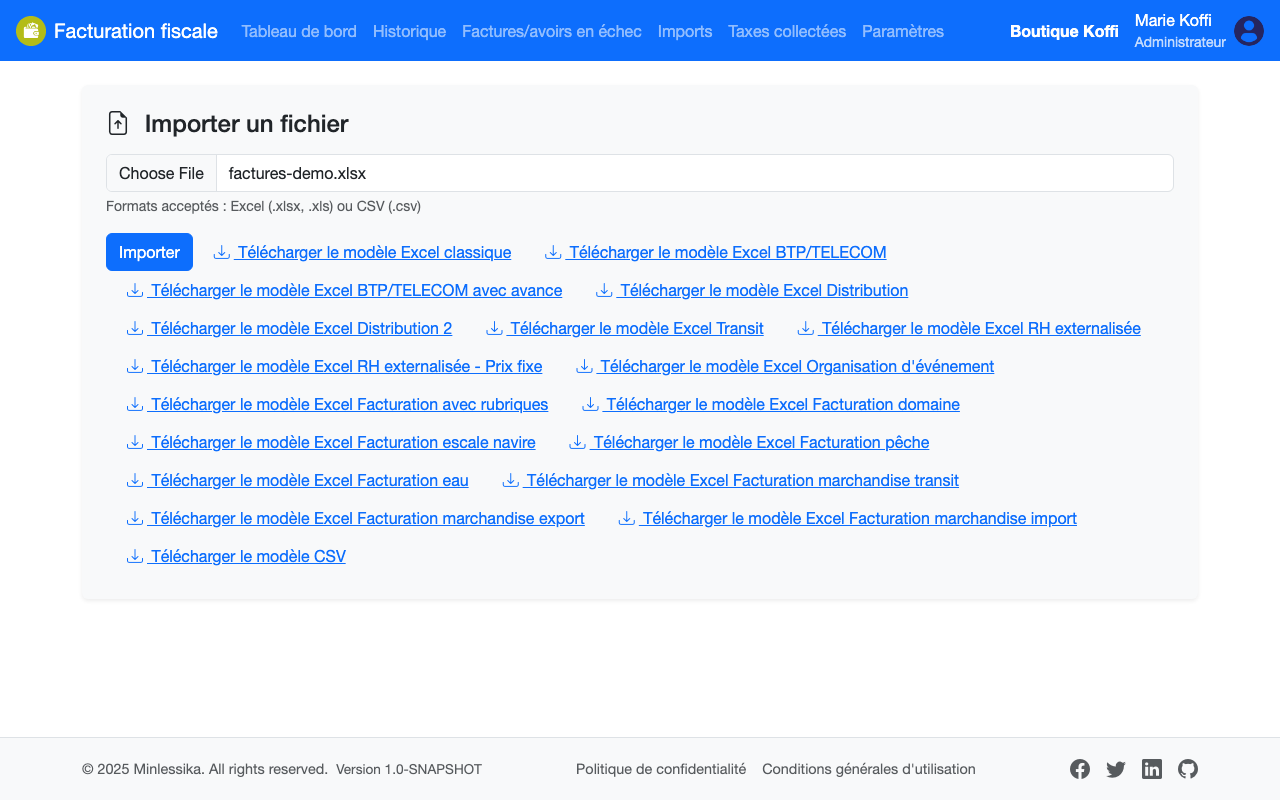
Open Imports, click Nouvel import (New import), pick your file, then click Importer (Import). The module recognizes the model of the workbook by its internal marker, whatever name you gave it.
4. Check the result
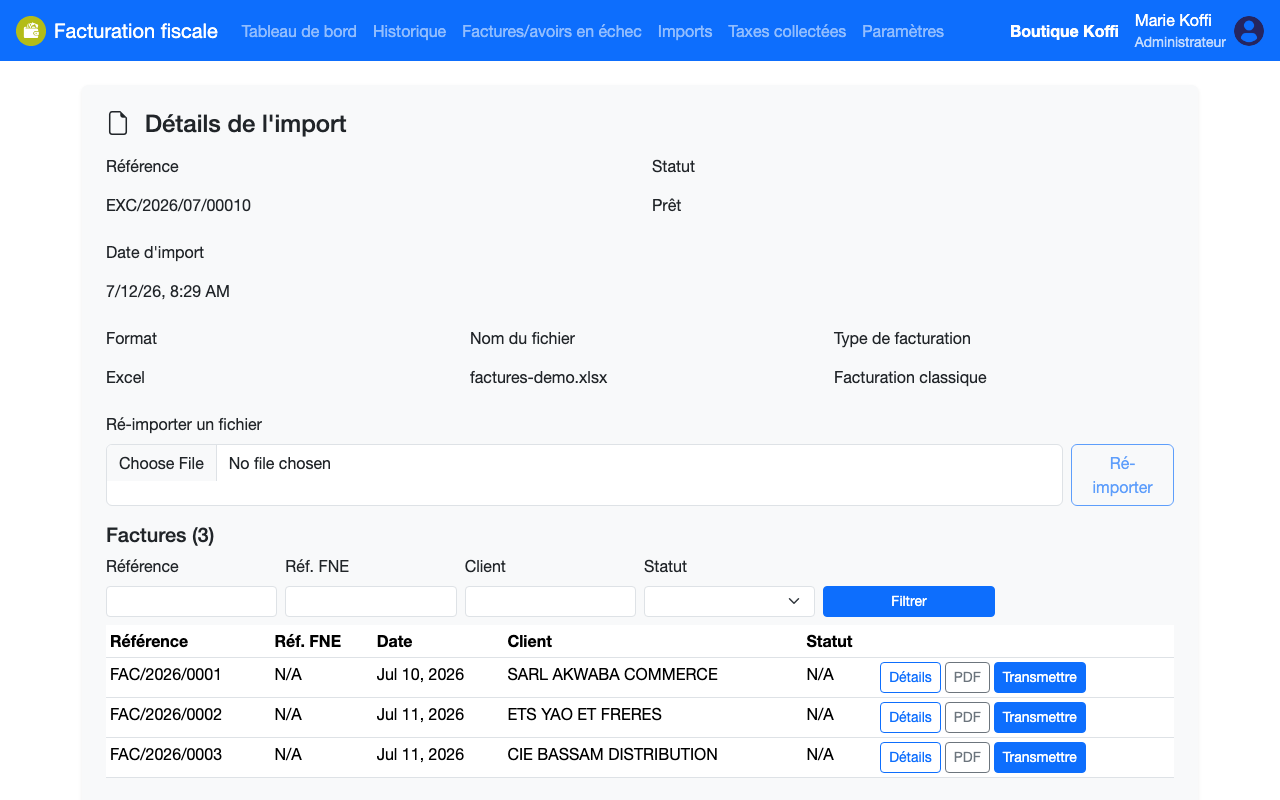
The module reads the file and opens the import detail, with the Prêt (Ready) status. It shows the Factures (Invoices) and Avoirs (Credit notes) sections, along with the Erreurs et avertissements (Errors and warnings) section, which counts the anomalies: fatal ones block submission, warnings do not.
Fixing a file
In case of a reading error, fix the workbook then upload it again on the same import with Ré-importer un fichier (Re-import a file): no need to create a new import.
Manual import only accepts Excel
The Nouvel import (New import) screen only accepts .xlsx and .xls workbooks. To import CSV, XML or JSON, go through automatic collection.
What next?
Your invoices are ready: submit the import to the FNE.
Changelog
- 2.0 (August 1, 2026): the workbook comes from the model, which is recognized by its internal marker.
- 1.0 (July 12, 2026): document created.