Generate the reports of the module
A report is a question put to the module and a sheet handed back. Sales publishes four of them, gathered under one screen: what you sold, what you are owed, what you cashed, and the account of one customer. This guide says what each one asks for and what each one shows.
Prerequisites
- The
SALES.REPORTING.READright — one single right opens the four reports - Documents over the period asked for: confirmed purchase orders, invoices, credit notes, validated settlements
Steps
1. Open the screen
In the menu, Reporting. The screen splits in two: a sidebar naming the four reports, and the page of the one you are reading. It opens on Sales statistics; the sidebar marks the current section, and the address of the page follows the one you pick.
Without the reading right on the reports, the sidebar stays empty and the screen does not open: the module drops you on the first screen your profile allows.
2. Set criteria, generate, take away
The four reports behave the same way: a form of criteria, then Generate the report.
- A criterion you leave alone is not sent: it then means "every one of them". A dropdown says so in plain words — Every customer, Every product, Every point of sale, Every status, Every mode.
- The dates are required everywhere, and the module asks for them before calling the server rather than after. A required field left empty shows its message under it.
- Generate the report opens a PDF preview. Export to Excel saves the same report as a spreadsheet, Close shuts the window.
Generating a report is a reading
No writing right comes into play, and no report changes anything. A profile in consultation only generates the four reports.
3. Sales statistics
The criteria: Customer, Product, Point of sale, From, To and Filter on the products — a text looked for in the name of the product.
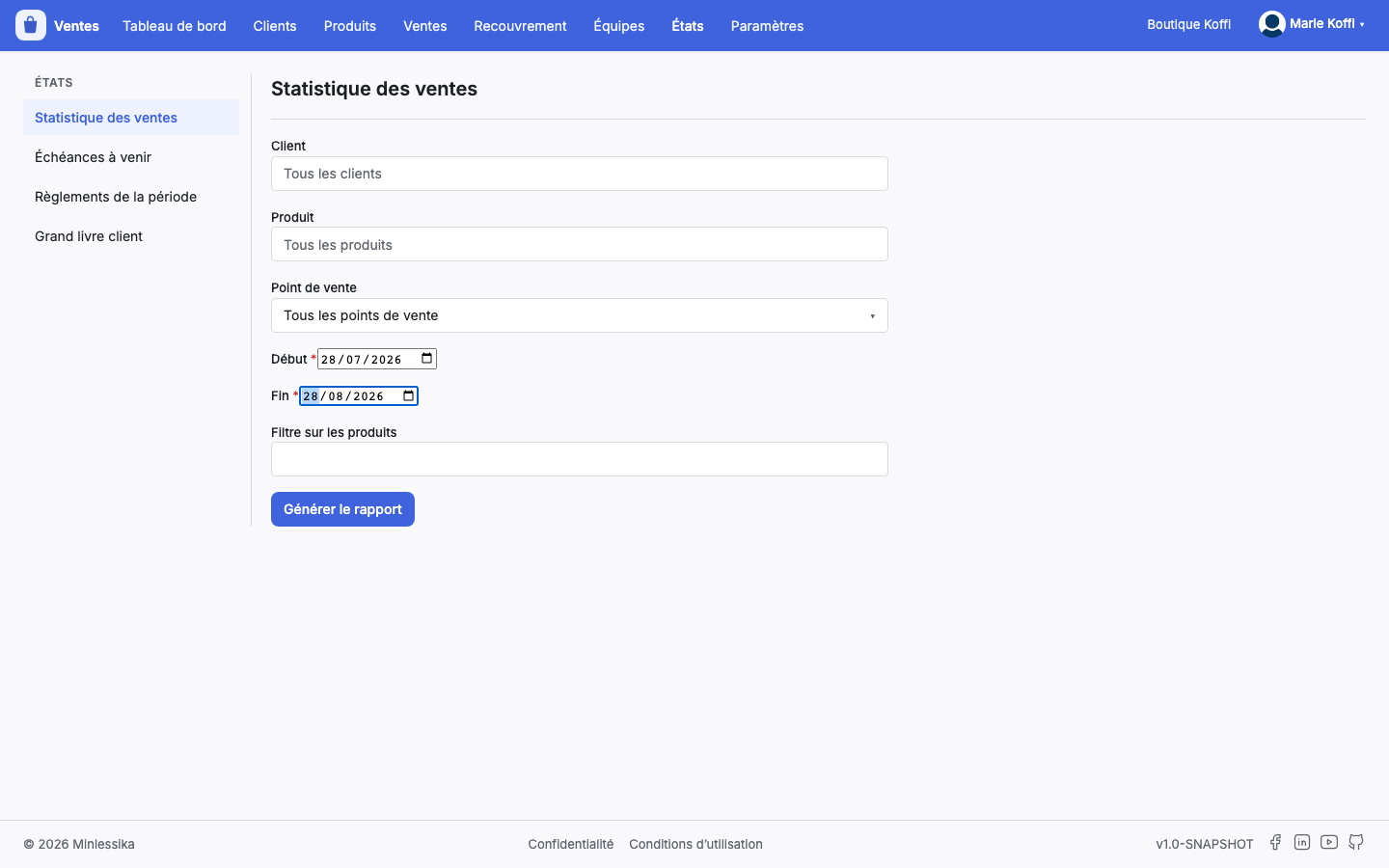
The report only counts the lines of the purchase orders that are confirmed, partly delivered or delivered: a draft order and a cancelled one are left out of it.
Every row gathers one product, one customer, one sale price and one cost price, and gives the Qty, the unit and total Cost price, the unit and total Sale price, the unit and total Margin, the Taux MQ — the margin over the sale price — and the Taux MC — the margin over the cost price. A Total row closes the sheet.
The cost price comes from the stock batches
The cost the report shows is the one of the batch the order line consumed. An item taken out with no costed batch counts for a nil cost, and its margin then equals its sale price.
4. Upcoming deadlines
The criteria: Customer, Customer reference, Payment status, Delay status, From, To and Filter on the orders.
The report puts the very question the Collection › Deadlines screen puts, and answers it whole rather than page by page. The columns are the Due date, the Order, the Customer, the Customer reference, the Amount, the Paid, the Left due, the Payment status and the Delay status.
The deadlines are gathered by customer and, inside a group, from the nearest to the furthest. Every group closes on its sub-total, and the sheet on a Total of what is left due.
Pick this screen when you start from a question; start from the deadlines screen when you start from a list you are reading.
5. Settlements of the period
The criteria: Customer, Point of sale, Mode of payment, From, To and Filter on the settlements — a text looked for in the reference.
A settlement is only counted once it is validated: a draft the cashier never confirmed and a cancelled settlement are read by nobody.
Every row tells the Date, the Reference, the Customer, the Point of sale, the Mode of payment, the Orders it was allocated to — gathered on one line, comma separated — and the Amount. The settlements are ordered by mode and then by day, and every mode carries its own total; the sheet closes on a Grand total.
A refund counts negatively
A refund is a settlement handed back to the customer: it is read with a negative amount, and it lowers the total of its mode instead of raising it. A report where the refunds outweigh the cashings therefore shows a negative total, which is the right reading.
6. Customer ledger
The criteria: Customer, From and To. The customer is required here — this is the one report that reads of somebody rather than of everybody.
The report lines up, in the order of the days, the pieces that moved what the customer owes you:
| Piece | Side | What is retained |
|---|---|---|
| Purchase order | Debit | The orders confirmed, partly delivered or delivered |
| Credit note | Credit | The credit notes validated or sent |
| Settlement | Credit | The validated cashings allocated to the customer |
The columns are the Date, the Piece, the Reference, the Debit, the Credit and the Balance. The balance is the one the row leaves behind it: it reads row after row, and not column by column.
The sheet opens on an Opening balance — everything that moved before the period, summed up in one figure rather than printed —, carries a Total of the movements and closes on a Closing balance.
A refund is not deducted yet
The ledger reads the cashings; it does not read the refunds yet. The account of a refunded customer therefore overstates what he paid. Use Settlements of the period to find his refunds again.
One limit to know about
The four reports are rendered in French, whatever the language profile of the person asking for them: the titles, the column headers and the labels of the totals are written in the template of the report, and not translated. The dates are written there as dd/mm/yyyy. Only the screen setting the criteria follows your language.
This is a known limit, tracked by issue #392 of the module.
What next?
- Track the deadlines of a customer — the same matter, seen as a list
- Cash a settlement and refund it
- Dashboard indicators — the figures the module computes on its own
- Permissions
Changelog
- 1.0 (August 27, 2026): document created.