Track stockouts
The module does not guess what you are short of: it compares the stock of an item, location by location, with the thresholds you give it. Those thresholds are called planning. Once set, the dashboard warns you and the Stockouts screen lists what has fallen to zero.
Prerequisites
- The
STOCKS.ARTICLE.WRITEpermission to set the thresholds - The
STOCKS.DASHBOARD.READpermission to read the alerts - The
STOCKS.REPORTING.READpermission to open the stockouts screen - A warehouse selected in the header of the application
Steps
1. Open the planning of an item
Open Items, then the record of the item, and click Manage the planning. The Item planning screen shows one block of fields per location of the warehouse. The Planning tab of the record merely displays them.
The locations are set by the module
You neither create nor delete a line here: the module holds the list of the locations concerned, you only rewrite their thresholds.
2. Set the three thresholds
Each location carries three numbers:
- Minimum stock — below it, you need to replenish;
- Safety stock — the cushion you grant yourself above the minimum;
- Maximum stock — the ceiling you do not want to exceed.
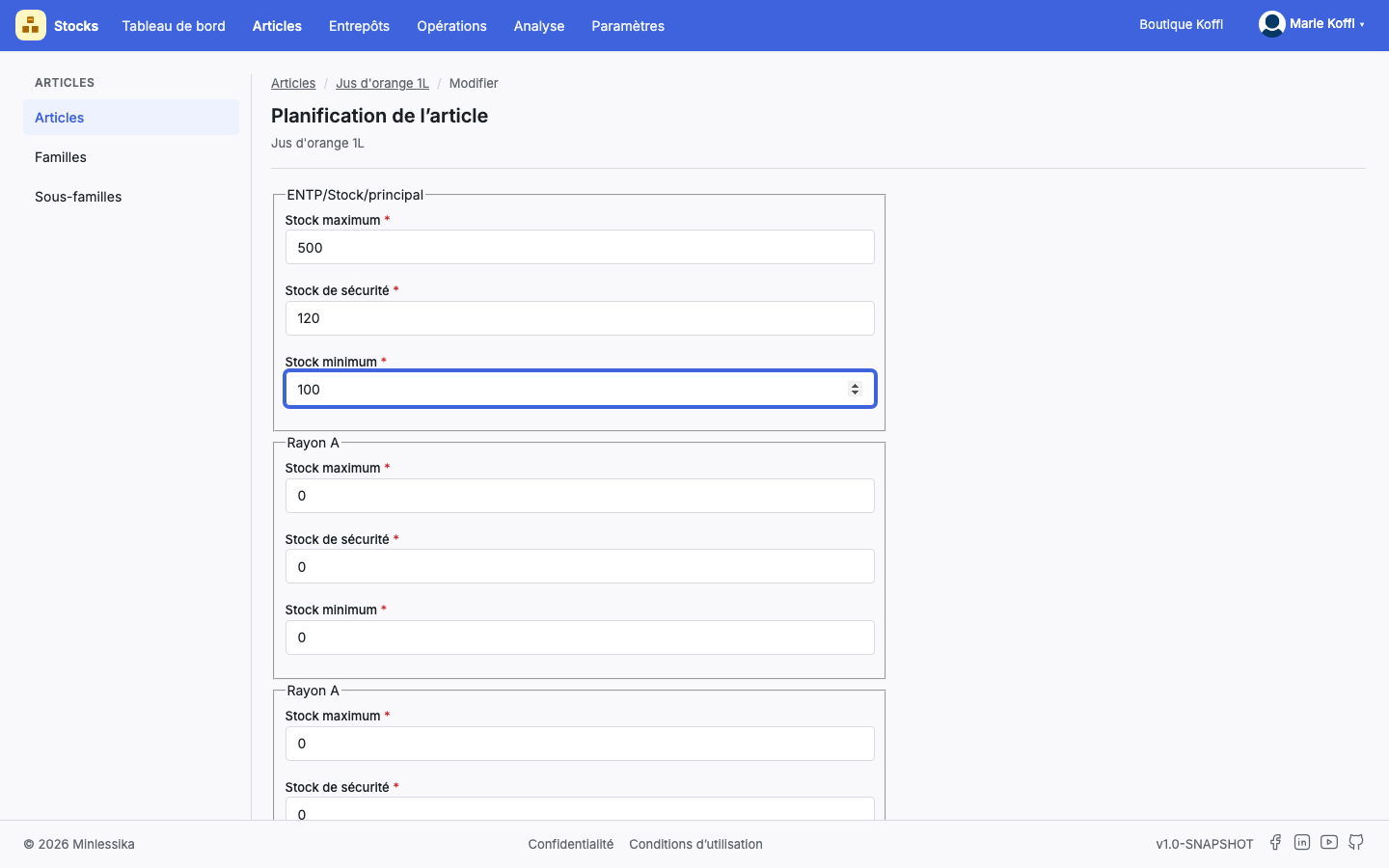
Save. All three are mandatory and none can be negative: the module refuses with "The minimum stock cannot be negative", "The safety stock cannot be negative" or "The maximum stock cannot be negative".
3. Read the dashboard alerts
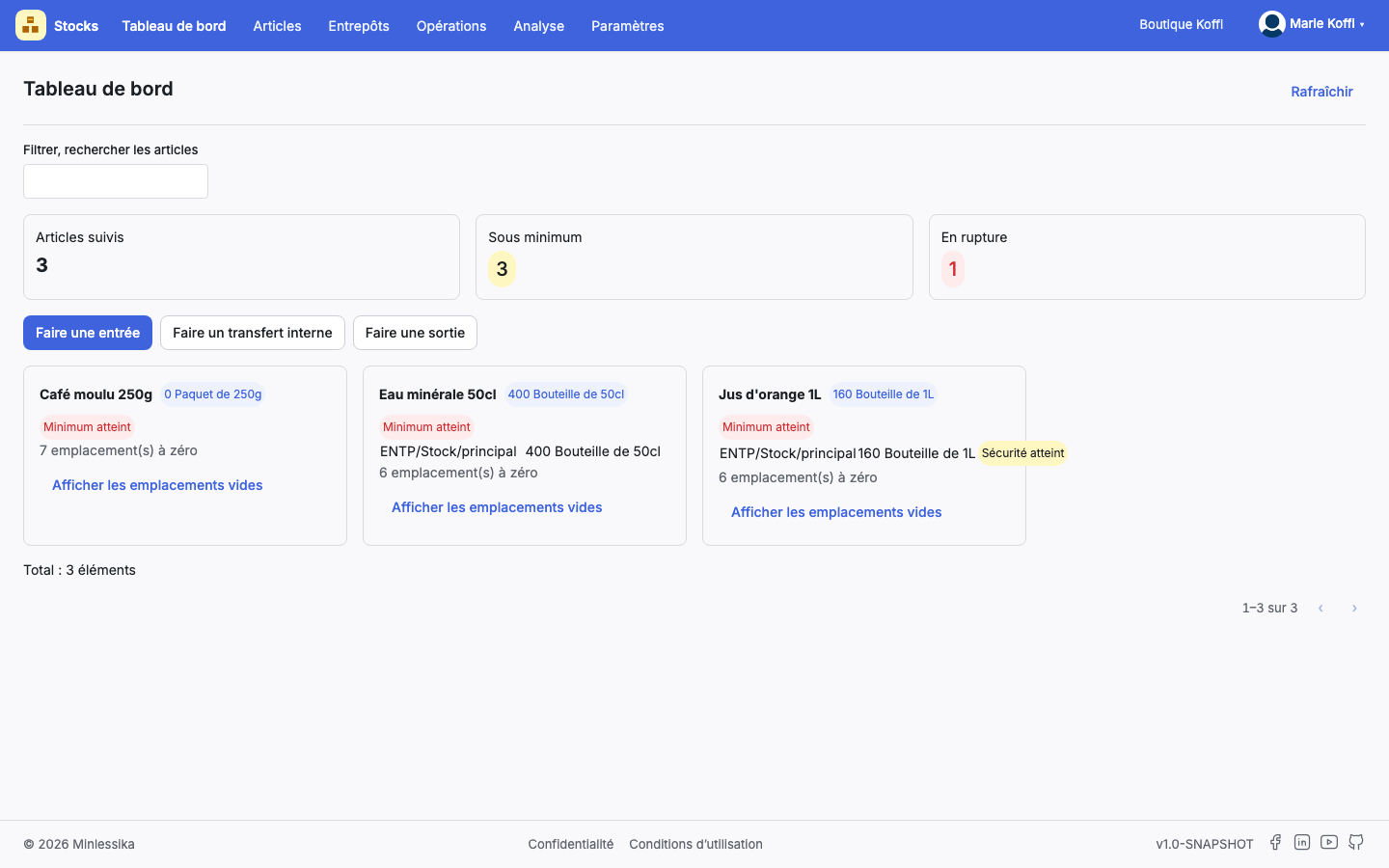
On the Dashboard, each item takes a card: its name, the total quantity held, and the badge of its most serious alert. Each line of the card is a location, with its quantity and its own badge:
- Minimum reached — the most urgent, to be handled first;
- Safety reached — the cushion has been eaten into;
- Maximum reached — the ceiling has been crossed;
- No alert — nothing to report.
A location without stock does not show straight away: the card announces "… locations at zero" and the Show the empty locations button unfolds them.
4. Follow the three indicators
At the top of the dashboard, three counters sum up the current warehouse: Tracked items, Below minimum and Out of stock. The last two only take colour when they exceed zero. Their exact definition is in the indicator reference.
5. Open the stockouts screen
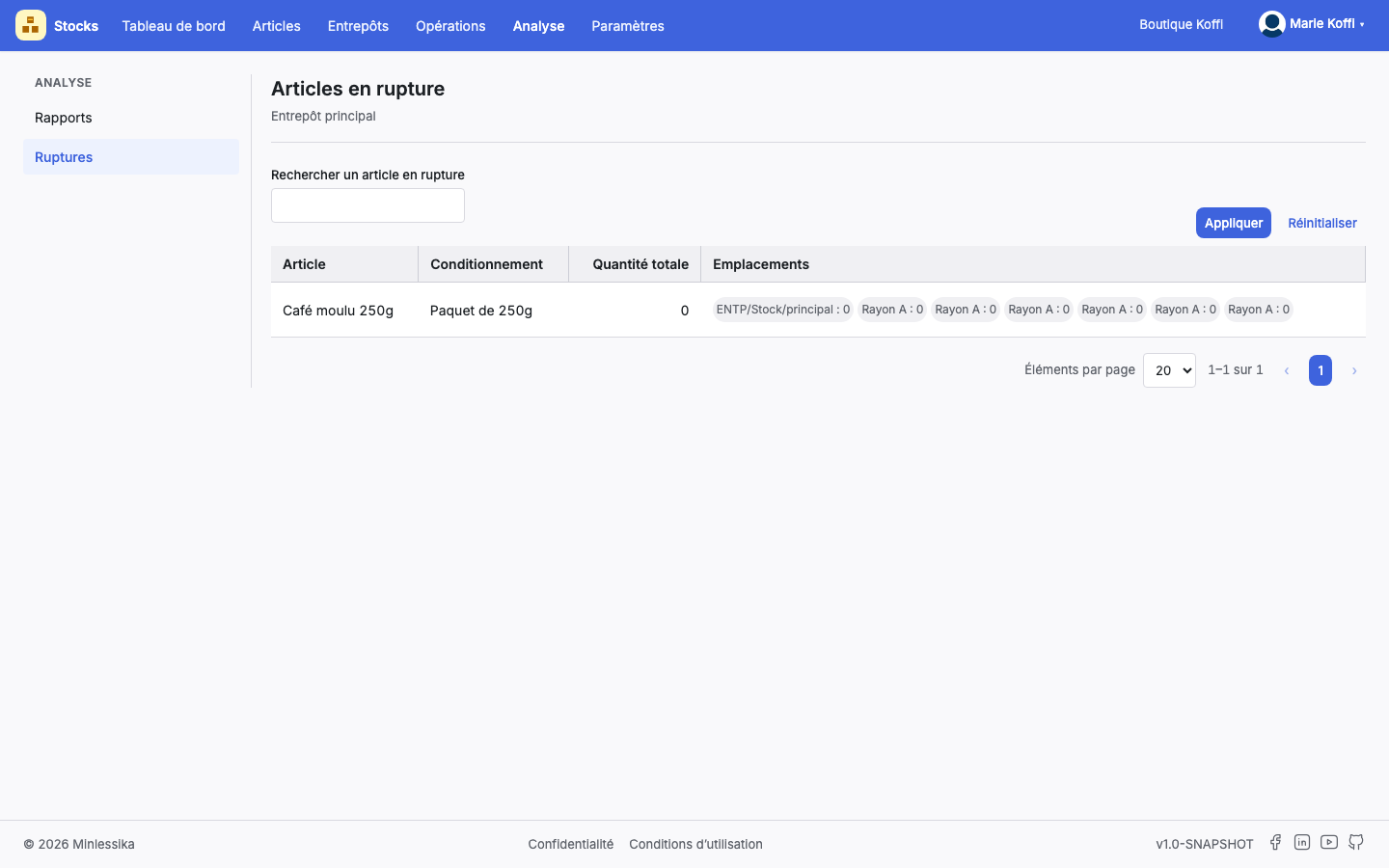
Open Analysis › Stockouts. The Out-of-stock items screen lists, for the current warehouse, the Item, its Packaging, its Total quantity and its Locations. The Search for an out-of-stock item field narrows the list; "No out-of-stock items" is the good news of the day.
One screen per warehouse
The list follows the warehouse chosen in the header. Change warehouse and you change stockouts: an item missing here can be plentiful elsewhere.
What next?
Changelog
- 1.1 (August 19, 2026): screenshots added.
- 1.0 (August 18, 2026): document created.