Cash a settlement and refund it
A settlement is never written on its own: it is rung against a document — a purchase order, an invoice — or against a deadline, and the server allocates it where it belongs. This guide cashes it, refunds it, then validates it, cancels it or throws it away.
Prerequisites
- The
SALES.PAYMENT.WRITEright to cash, refund, validate and cancel,SALES.PAYMENT.READto read back - A purchase order or an invoice to settle (see Create a purchase order and Generate an invoice)
- The payment modes of your organization, which the module reads as they stand
Steps
1. Cash from the record of the document
On the record of a purchase order or of an invoice, Cash opens Cash a settlement. The button only shows to a profile the module lets write a settlement, and asks for no particular status: a document is settled wherever it stands.
2. Fill the dialog
The dialog first recalls what is Left to pay on the document, as long as something is, then asks for:
- Payment date — required, date and time, set on now;
- Object — required: what this payment pays;
- Payment mode — required, picked among the modes of your organization;
- Amount paid — required;
- Transaction reference — required for a transfer and for a mobile payment, and for those alone.
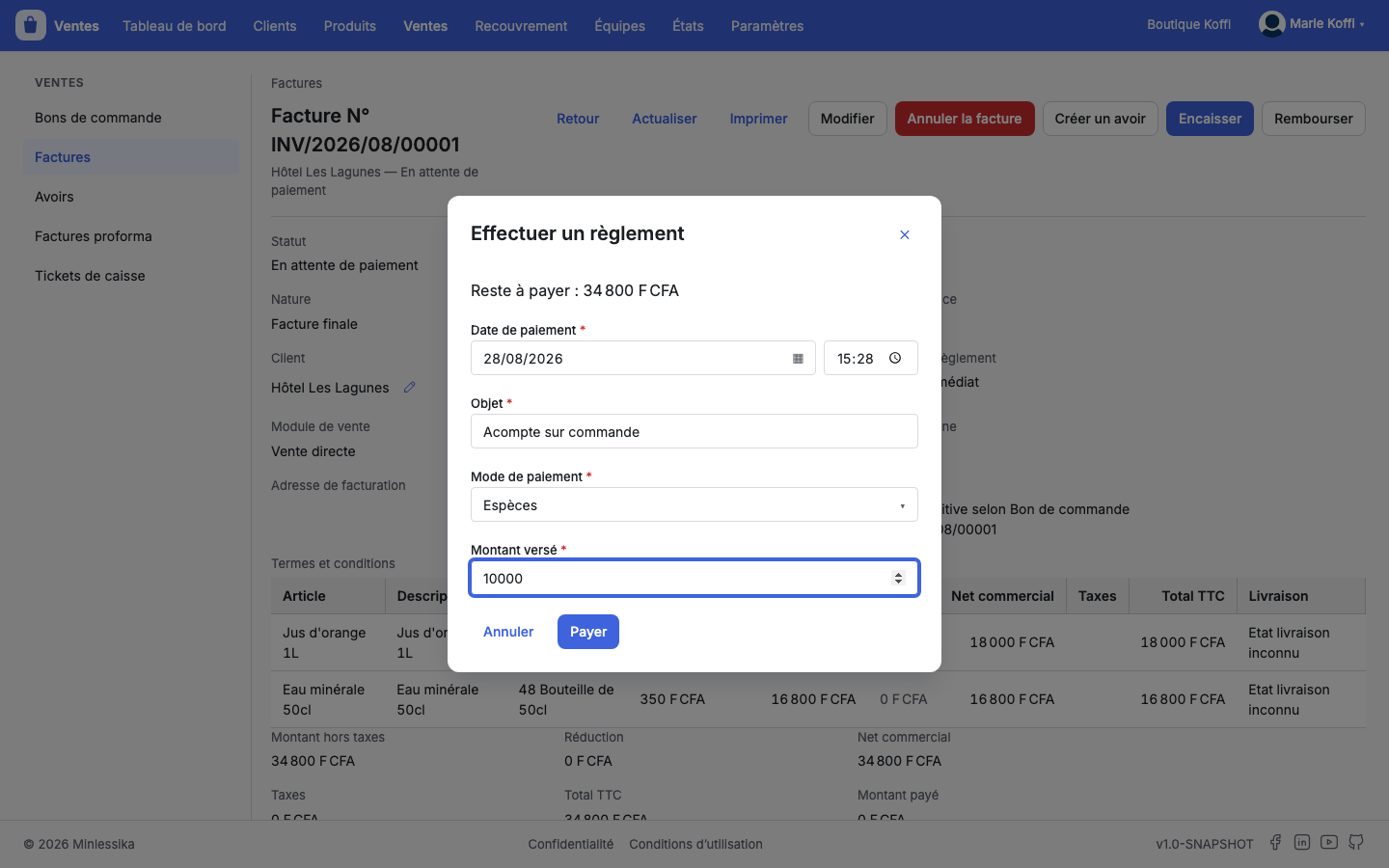
Pay writes the settlement.
A giveaway asks for no amount
A payment mode of the free kind makes the Amount paid vanish: the server draws it itself from what is left to pay on the document. You therefore set no figure at all for what is given away.
3. Refund
Refund, on the same record, opens Refund a settlement: the dialog is the same, but for the modes, which the module fetches from the list of the refund modes. The submit button is then called Refund.
The record of the document holds both stories side by side, under its totals: Settlements and Refunds, each with its Reference, its Payment date, its Object, its Mode, its Status and the Allocated amount — the share the server carried onto that document, never a total of its own. Open leads to the record of the settlement.
4. Find the settlements again
Collection › Payments gathers them all: Reference, Payment date, Kind, Object, Document, Mode, Point of sale, Customer, Status and Paid amount.
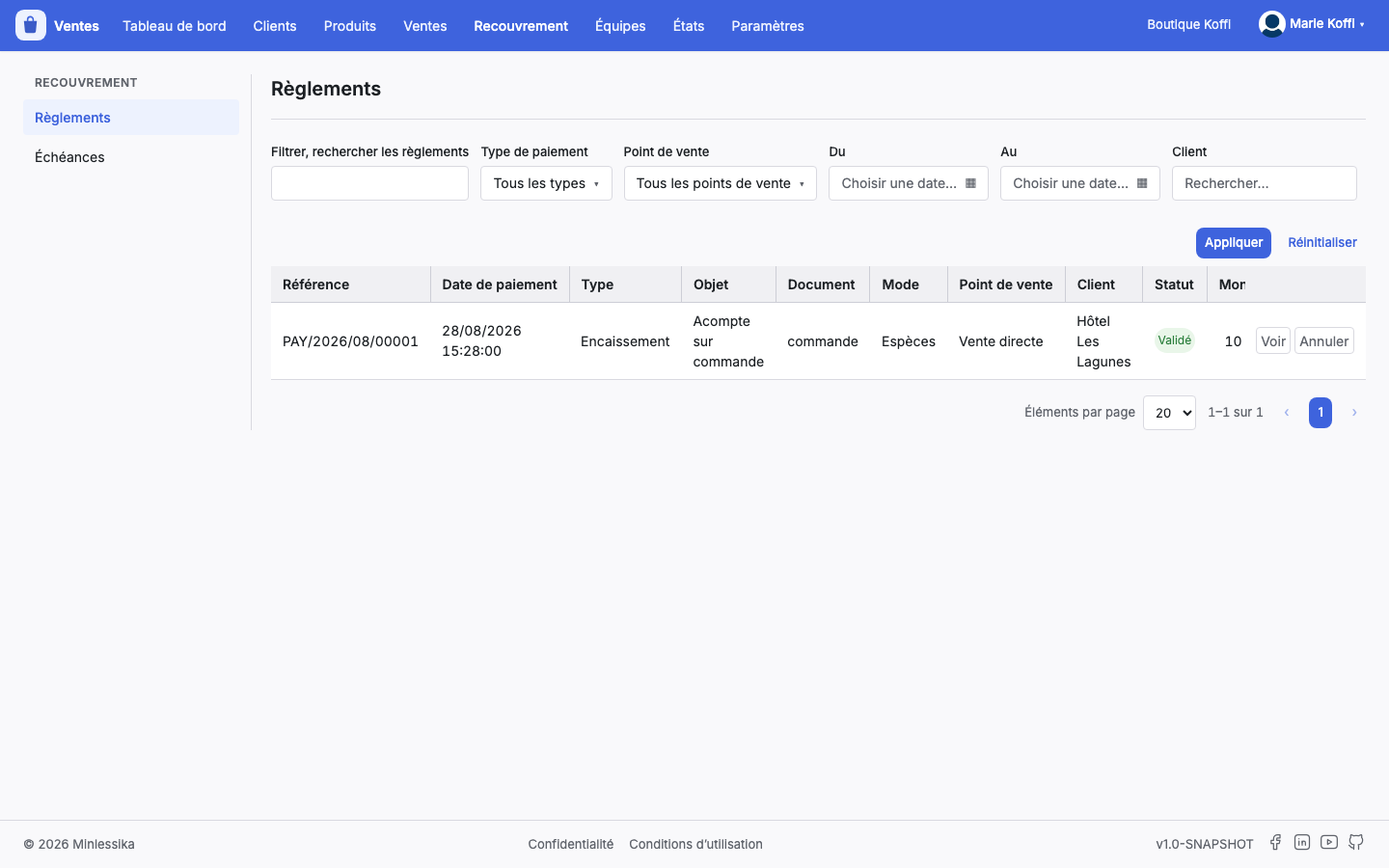
The filter of the screen holds six boxes: Filter, search the settlements, Kind of payment — Cashing or Refund —, Point of sale, From, To and Customer. What you set there holds in the address of the page.
Nothing is created from this list
The Payments screen reads, cancels and deletes; it offers no new settlement. A settlement is always rung against a document or against a deadline.
5. Validate, cancel, delete
Every row offers Open, then Cancel to a validated settlement and Delete to a draft. The record of the settlement carries the same rules, with more room:
- Validate — on a draft alone, after confirmation;
- Edit — as long as the settlement is not cancelled;
- Refresh — on a validated settlement, to ask the server to compute it again;
- Cancel — on a validated settlement;
- Delete — on a draft.
Reload reads the screen again, Print draws the receipt out of it, on the 80mm roll of the point of sale; printing asks for no writing right.
Once validated, a settlement is no longer thrown away
Delete is only offered on a draft. A validated settlement is cancelled, and the cancellation stays written in the history of the document.
6. Read what a settlement paid
Under its header — Status, Step, Kind of payment, Payment date, Object, Mode, Transaction reference, Document, Customer, Cashier, Point of sale — the record lines up what it settled: Item, Document, Qty, Paid amount, Left to pay. It closes on the Paid amount, the Received amount and the Change given.
What next?
- Track the deadlines of a customer
- Generate an invoice
- Consult the cash receipts — the settlements rung at the counter
Changelog
- 1.0 (August 27, 2026): document created.