Record an entry
An entry brings goods in: it starts from a virtual location — the outside world — and arrives in one of your internal locations. It is the entry that opens the valued batches all your exits will later draw from. This guide follows it from the draft to the execution.
Prerequisites
- The Inventory module activated for your organization
- The
STOCKS.OPERATION.WRITEpermission to write an operation,STOCKS.OPERATION.READto find it again - An operation type of the Fournisseur (supplier) category in the current warehouse (see Configure the operation types)
Steps
1. Open a new operation
On the Dashboard, the Record an entry shortcut looks in the current warehouse for the operation type named Receipts and opens New operation on it. If the warehouse has no such type, the module says so: No "Receipts" operation type in this warehouse.
The type travels with the operation
The operation belongs to the type on which you opened it, and the subtitle of the screen recalls it at all times. It is the type that decides the fields shown and the columns of the lines.
2. Fill in the header
An entry asks for:
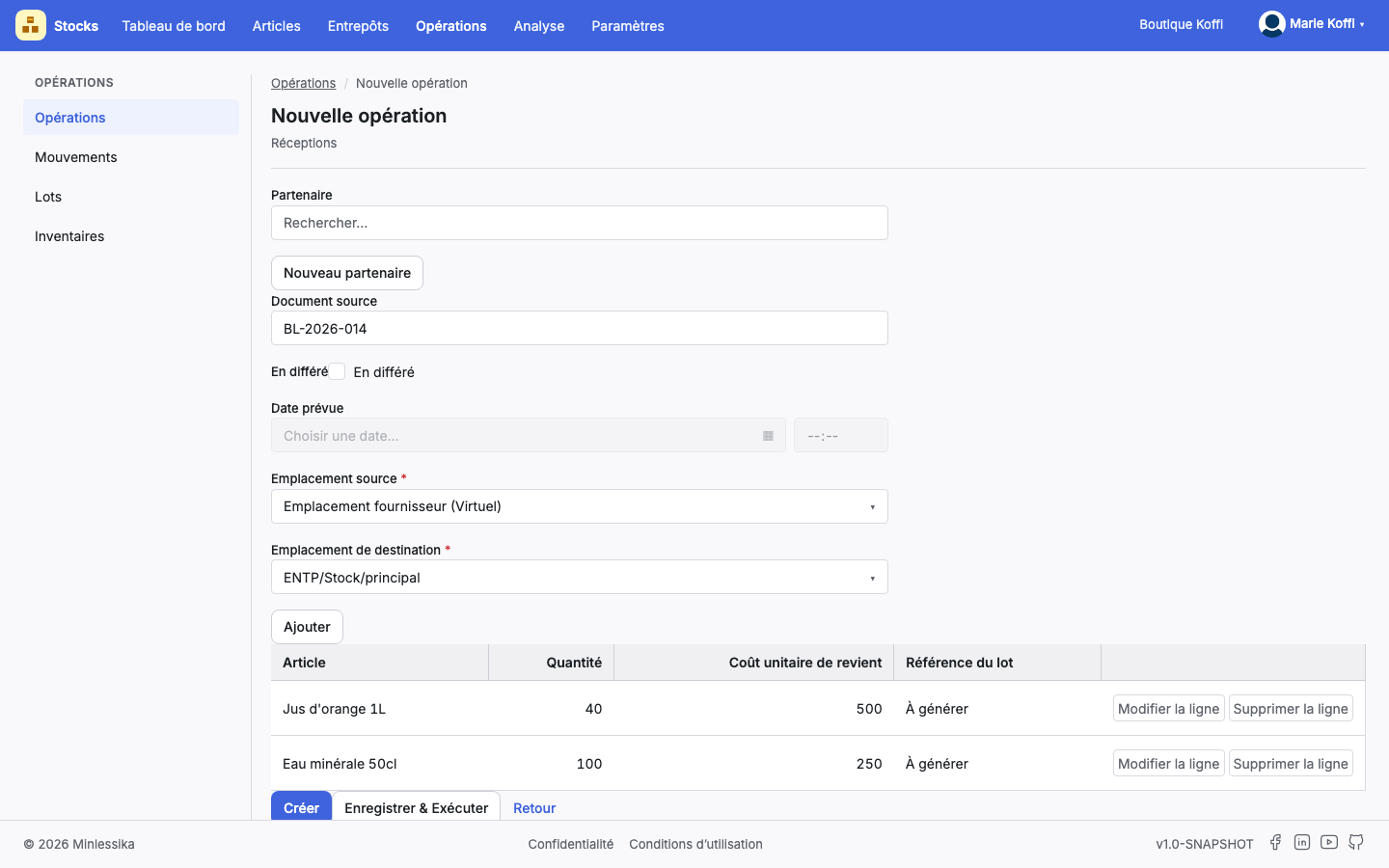
- Partner — the supplier; search for it, Remove the partner takes it away, New partner creates it without leaving the screen;
- Source document — your original document, delivery note or invoice;
- Deferred — to be ticked if the movement is dated another day;
- Planned date — open and mandatory only when Deferred is ticked; otherwise the movement is dated now;
- Source location — a virtual location, preset on the default source of the type;
- Destination location — the internal location that receives, preset as well.
The direction of the entry is checked
Virtual source, internal destination, and the two different. Otherwise: "You must pick a virtual location as the source location", "You must pick an internal location as the destination location", "The source location must differ from the destination location". A location that has children is refused on both sides: "A parent location cannot serve as the destination of an operation".
3. Add the item lines
Add opens Add an item line:
- Item — mandatory; picking the item brings its Last cost into the line;
- Quantity — mandatory, strictly positive;
- Unit cost price — mandatory: it is the price at which the batch will be valued;
- Batch reference — optional; left empty, the table shows To be generated.
The lines pile up in the table of the operation, with the Edit the line and Delete the line actions. Nothing is written as long as the operation itself is not.
A negative cost is refused
On execution, the module rejects the line: "The item cost cannot be negative". A null or negative quantity is already refused at entry: "Invalid quantity: it cannot be lower than or equal to 0".
4. Create the draft
The Create button saves the operation as a draft and gives it its reference, drawn from the sequence of the operation type. The screen then switches to edition and offers Save, Validate and Save & Execute.
What a reopened draft does not give you back
The Batch reference entered on a line is not returned by the server: reopen a saved draft and the column shows To be generated again. Enter it once more before executing if it matters to you.
5. Validate then execute
Validate moves the draft to the validated state: the operation leaves the Operations awaiting confirmation to join the Operations to perform. The module asks for confirmation, then Execute truly writes the stock, announcing what it does: The stock movements are recorded.
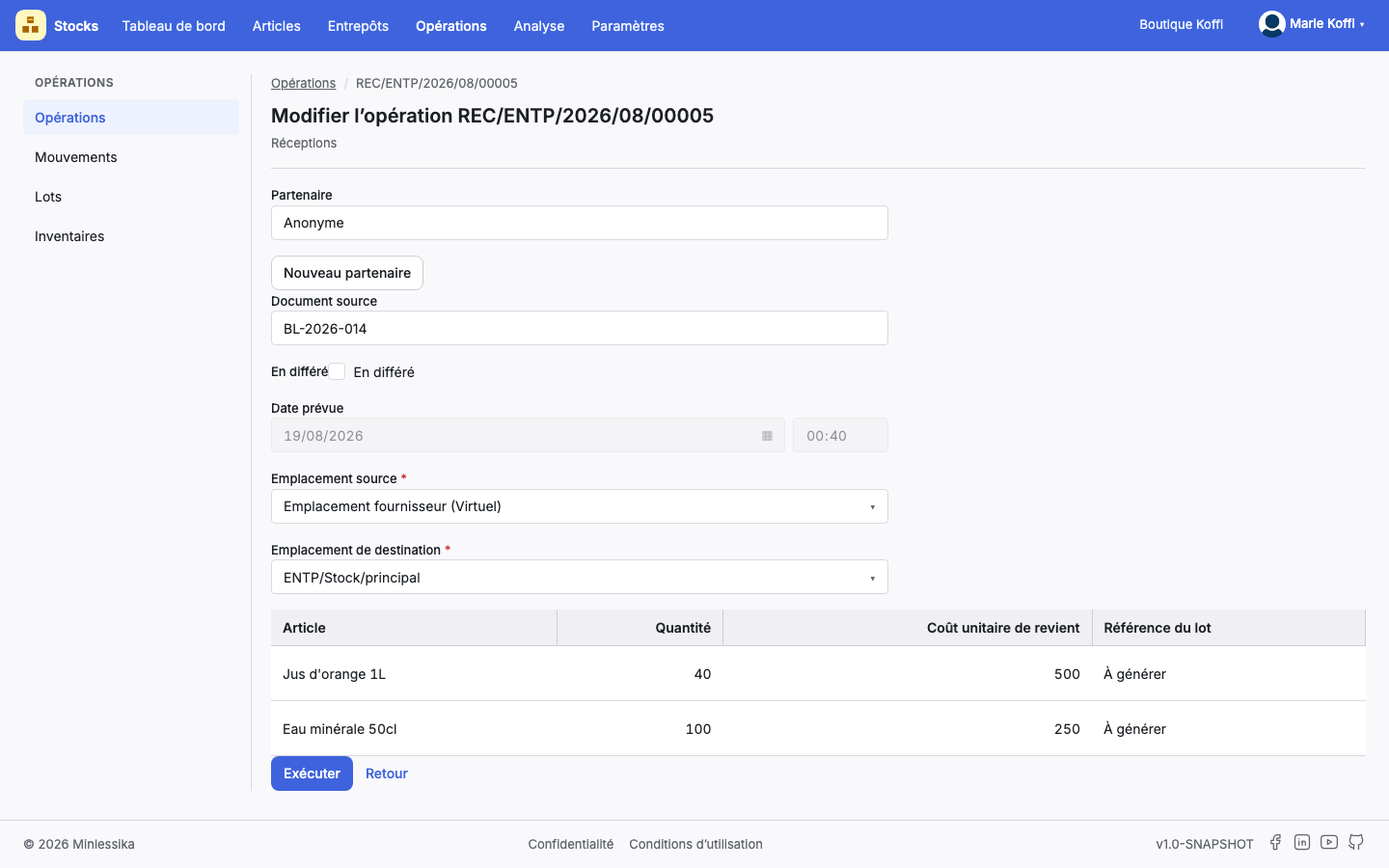
The Save & Execute shortcut chains the three steps into one.
The order cannot be worked around
Only a draft is validated — "The operation must be in draft mode to be validated" — and only a validated operation is executed — "The operation must be validated to be executed". An executed operation is neither changed nor deleted: "You cannot delete an executed operation". To come back on it, it must be canceled, which supposes a return type on its operation type.
6. Read what the execution wrote
For each line, the execution:
- opens a batch at the unit cost entered, with your batch reference or, failing that, the one the batch sequence generates;
- writes a stock movement from the virtual source to the destination location;
- raises the available stock of the item in that location by as much, and carries the quantity up to the parent location if there is one;
- recomputes the WAC of the item, visible in the WAC history tab of its record.
You then find your operations again on the Operations screen, filtered by Operation type and by Status, with the Date, Reference, Source document, Source location and Destination location columns. The Execute all button there executes at once every validated operation — of the whole organization, and not of the displayed type alone.
What next?
Changelog
- 1.1 (August 19, 2026): screenshots added.
- 1.0 (August 18, 2026): document created.