Create a purchase order
The purchase order is the sale itself: it is the one that commits, that is invoiced and that is cashed. It is born of a converted quotation, or directly, when the customer orders without having asked for a pricing. This guide follows the direct creation.
Prerequisites
- The Sales module activated for your organization
- The
SALES.PURCHASE_ORDER.WRITEright to write an order,SALES.PURCHASE_ORDER.READto read it back - At least one seller in a sales team: the seller is required
- The products to sell in the catalog, with their sales pricing
Steps
1. Open a new order
In the menu, Sales › Purchase orders, then New purchase order.
The list is narrowed by text, Status, Point of sale, period — From, To —, Customer, Beneficiary and Performer.
2. Fill the header
The Create a purchase order dialog asks for:
- Seller — required; if you are yourself a seller of the module, your name is already there;
- Customer — the one who buys, searched among the contacts of the organization;
- Beneficiary — the one it is bought for, when that is not the customer;
- Issue date — required, date and time;
- Expiration date — required;
- Payment condition — the list the server publishes;
- Delivery delay (days) — required;
- Customer order reference — your mark on the side of the customer;
- Billing address and Delivery address;
- Description and Terms and conditions.
Save: the order is written as a draft and its record opens.
The performer and the account manager are not typed here
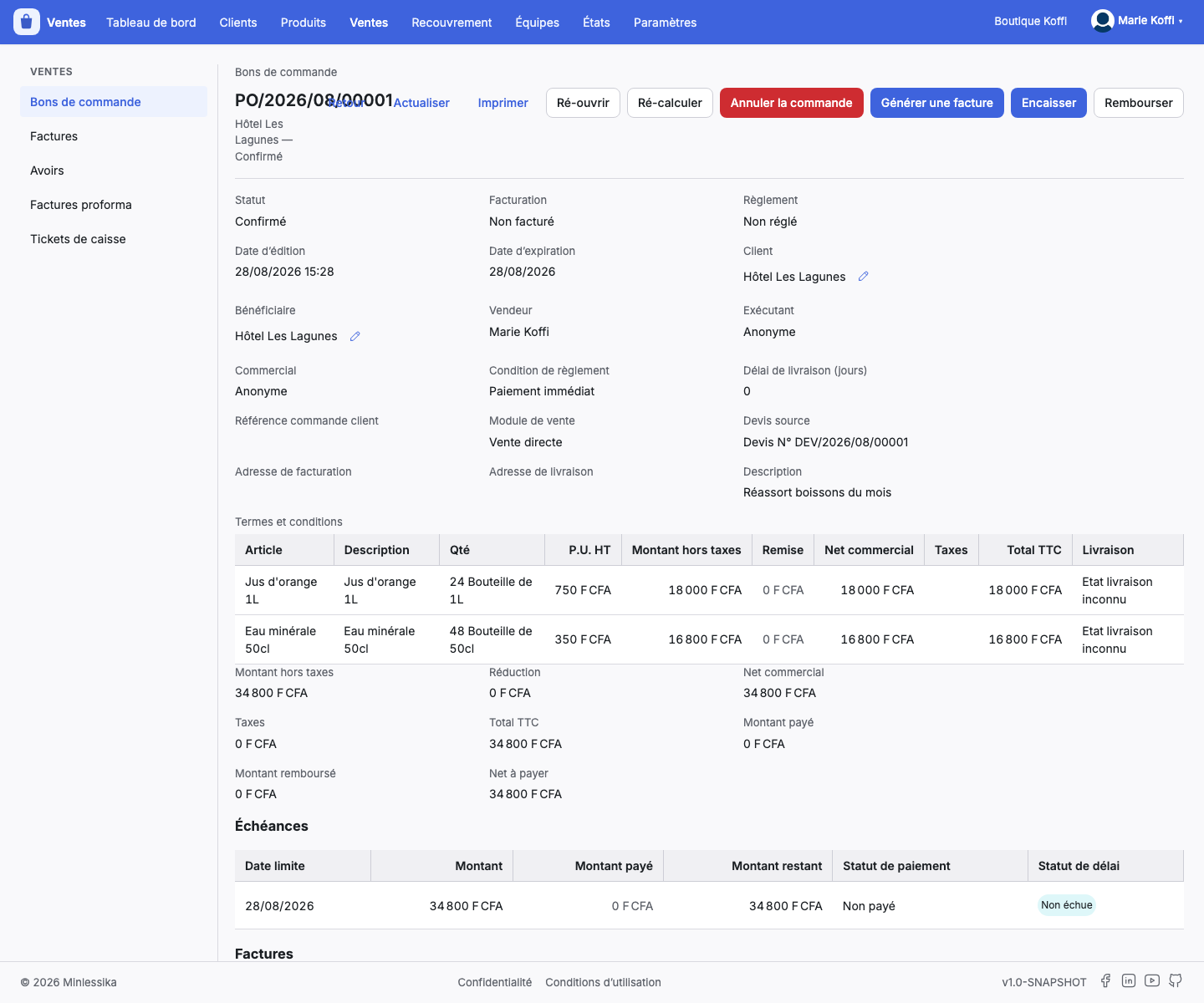
The header of the record also names a Performer and an Account manager: those parts come from the sales taken elsewhere, at the cash register notably. The pencil set beside a party rewrites the contact, not the part it plays on the order.
3. Add the lines
Add a line opens the same dialog as on a quotation: Product required, Label, Description, Quantity required, Unit price — locked on the tariff of the catalog except for a product whose price is settled at the sale —, Apply the discount automatically, Discount and Taxes. The server computes the rest.
The table of items carries one more column, Delivery, and the totals under it go from the Untaxed amount to the Net to pay, through the Paid amount and the Refunded amount.
4. Confirm the sale
Confirm the sale commits the order — the module asks for confirmation. Its lines are no longer rewritten, and invoicing opens to it.
Reopen is only offered to an order merely confirmed: as soon as a delivery has started, going back is no longer proposed.
5. Cancel or recalculate if needed
Cancel the order stays offered as long as the order is neither fully invoiced, nor fully paid, nor already cancelled.
Recalculate shows on any order out of the draft: the module takes up the amounts of its lines again and confirms it with The purchase order has been recalculated. Use it when a discount or a tax changed after the typing.
6. Read what the order gathers
Under its totals, the record stacks what the sale produces: its Deadlines, its Invoices — shown to whoever reads invoices —, its Settlements and its Refunds. Cash and Refund are done from there.
What next?
Changelog
- 1.0 (August 27, 2026): document created.