Activate modules
Your organization's features come from modules (applications): sales, inventory, accounting, point of sale… You activate them as needed from the organization's dashboard.
The interface is in French
The Minlessika interface and the screenshots below are in French. Each button or field name is shown here as it appears on screen, with its English translation in parentheses.
Prerequisites
- A company organization that you own
- An active subscription on this organization (the free trial qualifies) — without a subscription, the Installer (Install) buttons are disabled
The applications dashboard
Your organization's dashboard has two sections:
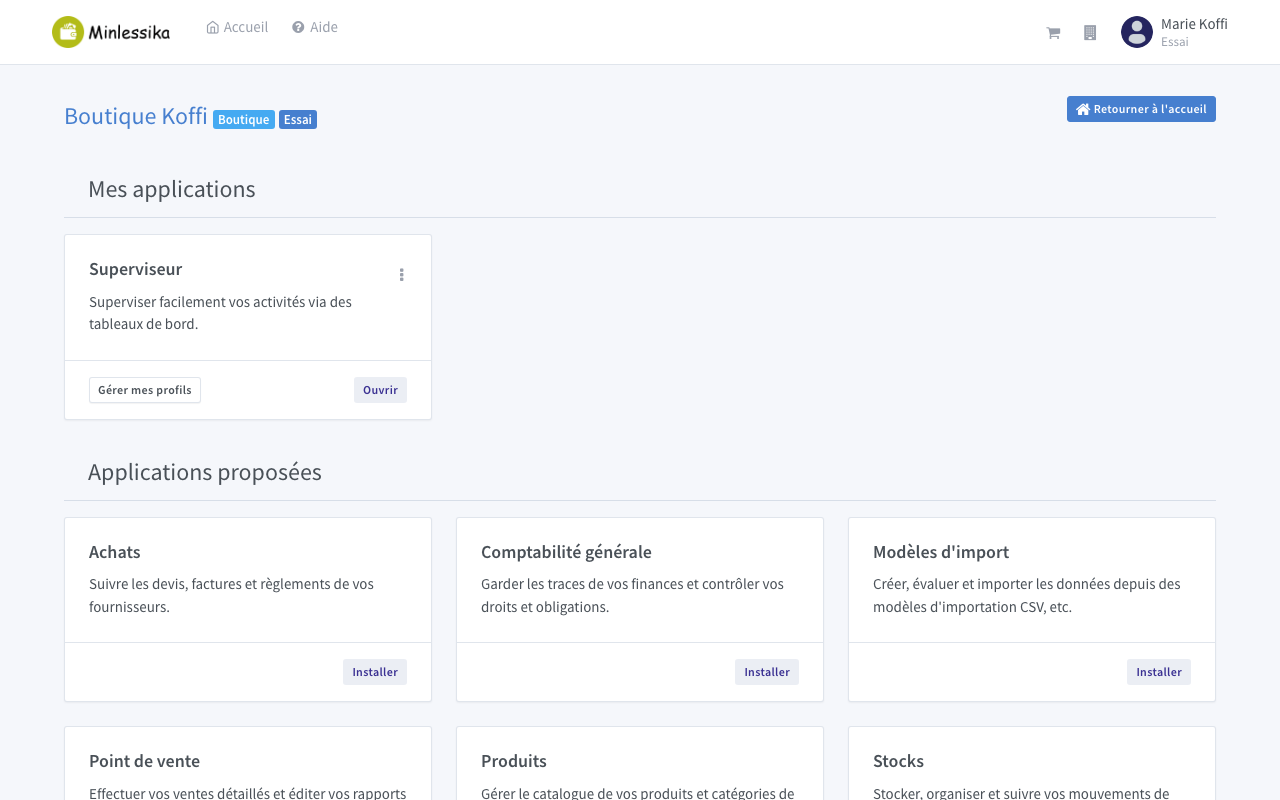
- Mes applications (My applications): the modules already activated. Each card offers Ouvrir (Open — access the module) and Gérer mes profils (Manage my profiles — define the roles).
- Applications proposées (Suggested applications): the available modules you can add, each with an Installer (Install) button.
Activate a module
On the card of the module you want, in Applications proposées, click Installer. The module opens in a new tab and offers to finish its installation.
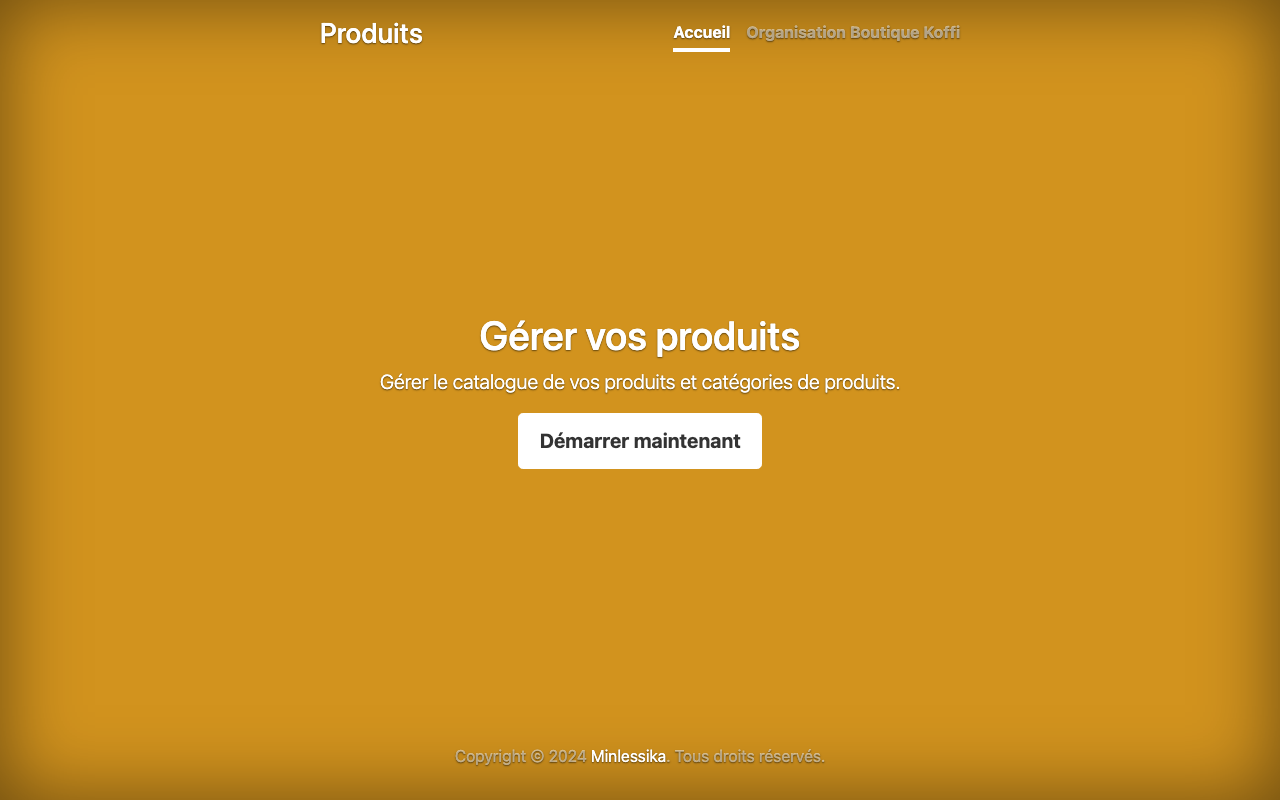
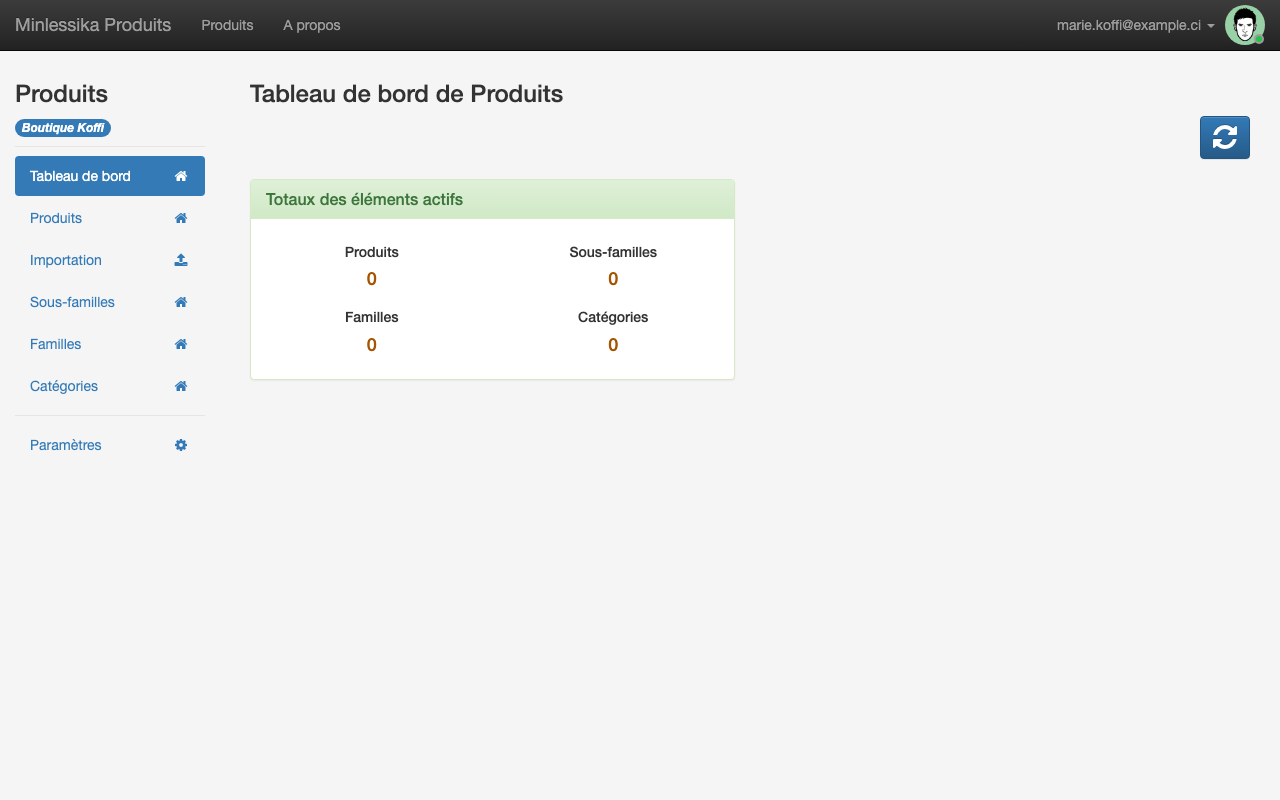
Click Démarrer maintenant (Start now). The module installs, then opens, ready to use.
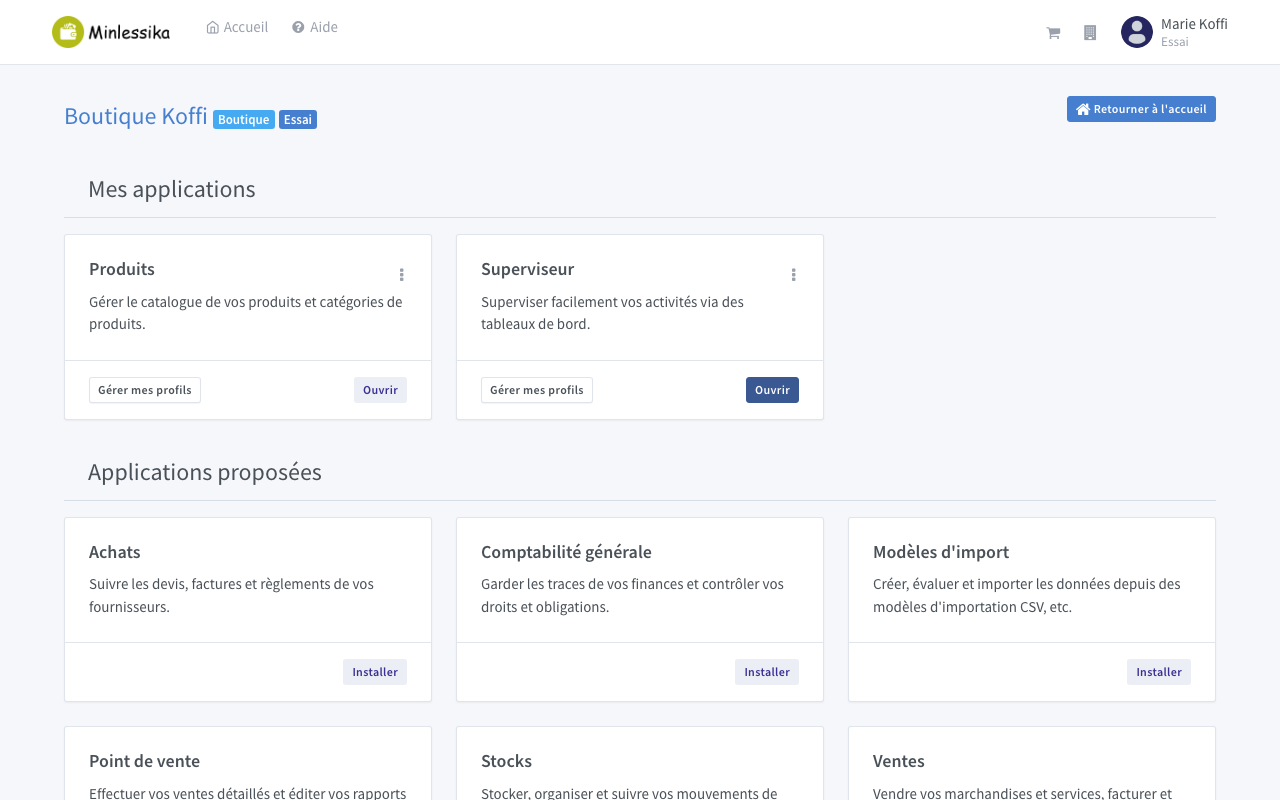
Back on the organization's dashboard, the module has left Applications proposées and joined Mes applications: your team can now open it from its card.
Give your team access
Activating a module makes it available to the organization. For a coworker to use it, open its access to them and assign them a role — see Invite users.
What next?
Your organization is set up: account, organization, coworkers, and modules. Explore the module catalog to get familiar with each of them.
Changelog
- 1.2 (July 12, 2026): full installation flow illustrated with the Produits module.
- 1.1 (July 11, 2026): tutorial written with a screenshot.
- 1.0 (July 9, 2026): document created.