Track the deadlines of a customer
A deadline is a sum a customer owes you on a date. It is born of the payment condition of an order and lives until it is settled. This guide finds it again, settles it and takes it away on paper.
Prerequisites
- The
SALES.DEADLINE.READright to read the deadlines - The
SALES.PAYMENT.WRITEright to settle one - Purchase orders carrying a payment condition (see Create a purchase order)
Steps
1. Open the screen
In the menu, Collection › Deadlines. The screen does not open on everything: its Delay status is set by default on Due (running and expired), that is, what you have to collect today. Open it on Every delay to see the rest.
2. Narrow the list
Seven filters follow one another:
- Filter by order reference — the text of the order you are after;
- Customer reference — the one the record of the customer carries;
- Customer;
- From and To — the period of the due dates;
- Payment status — Unpaid, Partly paid, Paid;
- Delay status — Due (running and expired), Running, Expired, N/A.
A filter you leave alone does not travel; what you set holds in the address of the page, so a reload does not lose it.
3. Read the columns
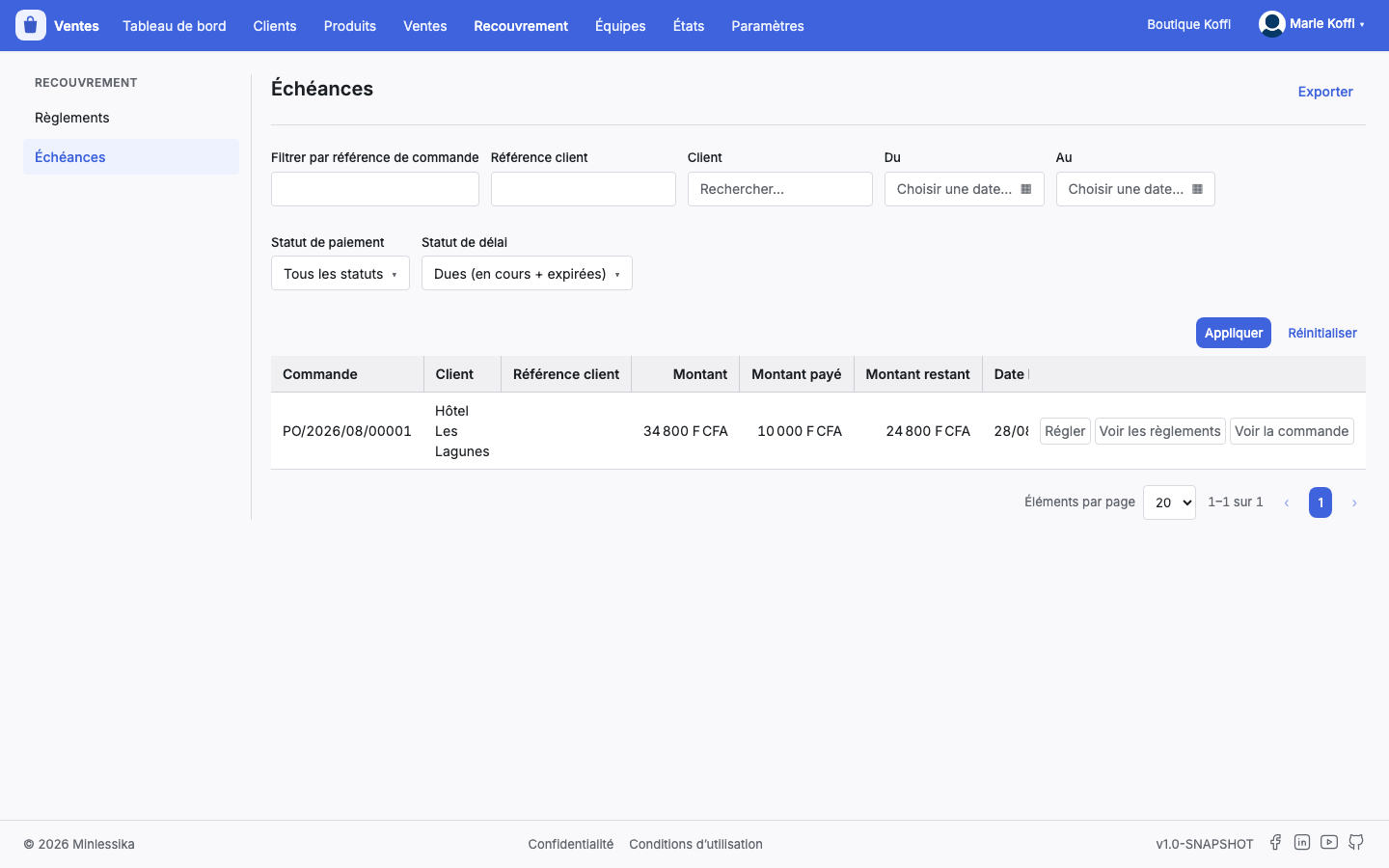
Every row tells the Order the deadline was born of, the Customer, its Customer reference, the Amount owed, the Paid amount, the Left amount, the Due date, the Payment status and the Delay status.
4. Settle a deadline
Settle, on the row, opens Cash a settlement — the dialog described in Cash a settlement — recalling what is left on that very deadline. The module allocates it on the deadline and on the order in one move.
The action only shows to a profile the module lets write a settlement, and only on a deadline that is not settled and that does carry an order.
5. See the settlements already received
See the settlements opens Settlements of the deadline: the very table a document record carries, with the Reference, the Payment date, the Object, the Mode, the Status and the Allocated amount. Open leads to the record of each settlement.
See the order leads to the purchase order the deadline was born of, where it carries one.
6. Export the tracking
Export renders, as a PDF preview, the very rows you are looking at: the filters you set travel with the request. The report gathers the deadlines by customer and closes each group on its sub-total.
In the preview, Export to Excel saves the same report as a spreadsheet, and Close shuts the window. Exporting is a reading: no writing right is asked for.
The same tracking lives in the reports too
Reporting › Upcoming deadlines renders the same report out of a form — customer, customer reference, statuses, period — rather than out of a filtered list. Pick the screen depending on whether you start from a list you are reading or from a question you are asking.
What next?
- Cash a settlement and refund it
- Generate an invoice — where the deadline draws its date from
- Getting started with Sales
Changelog
- 1.0 (August 27, 2026): document created.