Put a sales team together
A seller, in Sales, is not a user: it is a contact of your organization you declare a seller by putting it in a team. This guide builds a team, puts sellers in it, moves them around, and ties the team to a warehouse so that its deliveries leave from the right place.
Prerequisites
- The
SALES.TEAM.READright to read the teams and their sellers - The
SALES.TEAM.WRITEright to write them - The
SALES.INTERFACING.READandSALES.INTERFACING.WRITErights for the interfacing with the inventory - Contacts in the organization (see Create a customer for the way the module reads them)
Steps
1. Browse the teams
In the menu, Teams. Every row tells the Name of the team, its Short name and the number of Sellers it counts. A Filter, search the teams box narrows the list; what you set there holds in the address of the page.
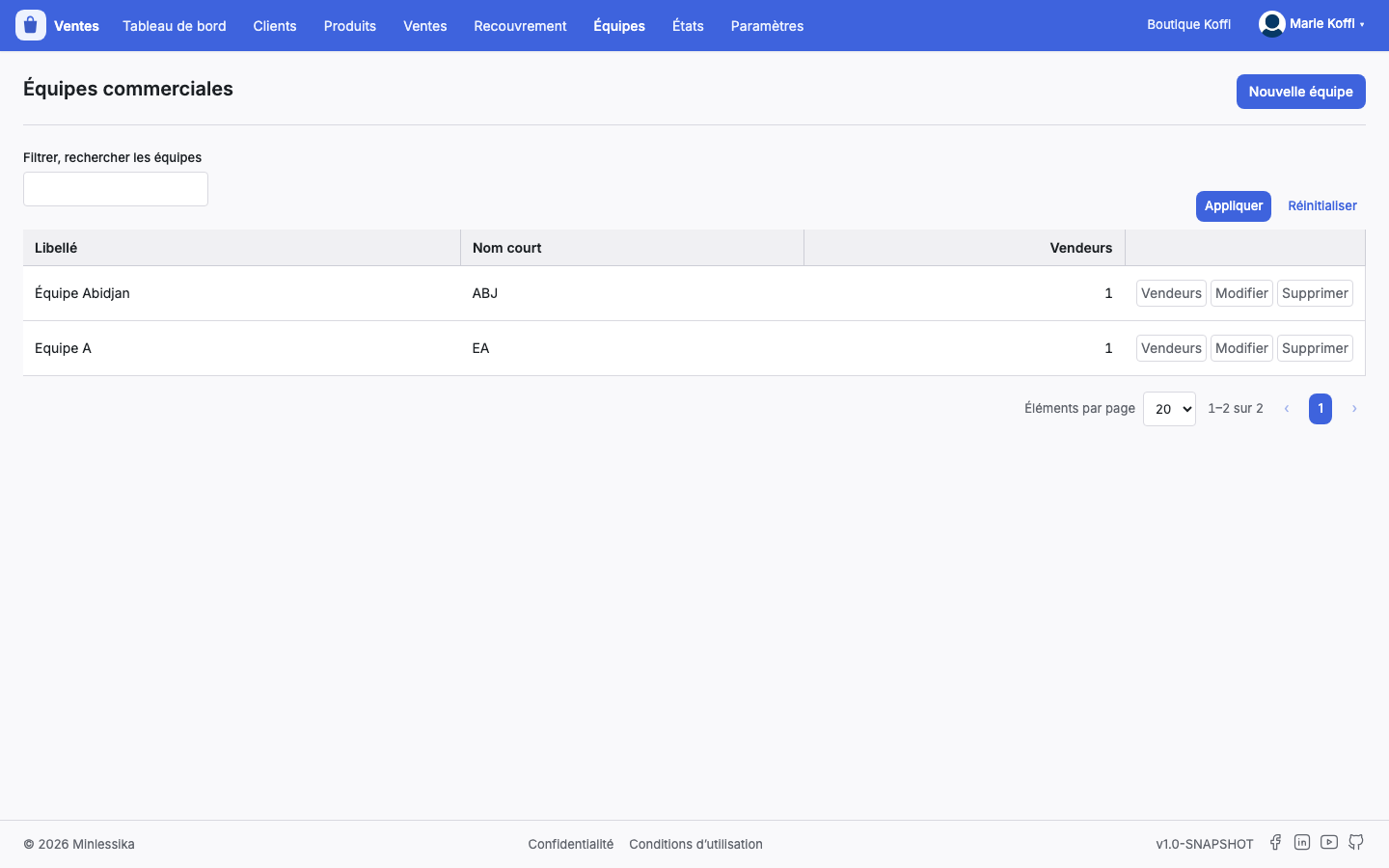
Three actions sit on the row: Sellers, Edit and Delete. A profile that only reads sees one of them, Sellers.
2. Create or edit a team
New team, at the top of the screen, opens Create a sales team. Two fields, both required:
- Name — the one the list shows;
- Short name — the abbreviation the narrow screens take up.
Edit, on the row, reopens the same dialog on the existing team. A refusal of the server — a name already taken, for instance — shows in the dialog instead of vanishing.
3. Delete a team
Delete asks for confirmation, then wipes the team out. The server refuses a team it cannot undo, and its refusal shows above the list. Take its sellers out first if you want to dismantle it cleanly.
4. Open the sellers of a team
Sellers, on the row, leads to Sellers of the team. The screen carries the name of the team as its title, a breadcrumb back to Sales teams and a Teams button to go back.
The table gives the Full name, the Phone and the Email of every seller. Without the writing right, it reads and nothing more.
5. Add a seller out of the contacts
Add a seller opens Add a seller to the team: a paged list of the contacts of the organization, narrowed by Filter, search the people, with the Full name, the Nature, the Phone and the Email. Add, on the row, enlists the contact; the table of the team reads itself again at once.
This is the ordinary move: a seller almost always exists as a contact already.
6. Create a seller who does not exist yet
Create a seller opens the Create a person form — the very one of the contacts, with the Last name, the First names, the Civility, the details and the address. On saving, the person is born in the contacts of the organization and joins the team in the same move.
A seller stays a contact
Nothing sets a seller apart from another contact but its belonging to a team. Edit the contact, on the row of a seller, reopens its record in the form of its nature — person or company. What you change there changes the contact everywhere.
7. Change the team of a seller, or take him out
- Change team opens Change the team of the seller: the list of the teams, with their Name and their Short name, and a Transfer button on every row. The seller leaves his team and joins the one you point at, in one single move.
- Remove asks for confirmation, then takes the seller out of the team. The contact itself stays.
8. Find the seller again on the documents
The Seller field of the creation forms — purchase order, invoice, proforma invoice — is required. It suggests the sellers of the organization as you type.
On a new document, the module fills it in advance with the seller you are, when it knows one: it looks at the contact your account stands for inside the organization and checks that it is indeed a seller. Where it knows none, it leaves the field empty, for you to fill. Editing an existing document never touches the seller already named on it.
That is the whole day-to-day use of the teams: they decide who may be named in that field, and who is named there by default.
9. Tie the team to the inventory
In the menu, Settings › Interfacing, screen Stocks of the sales teams. The module lines every team of the organization up there, each of them with two lists:
- Warehouse — the one the deliveries of the team leave from;
- Delivery operation — the type of operation they are shipped under.
Both lists come from the Inventory module, which Sales asks on your behalf. The operations offered are those of the chosen warehouse: changing the warehouse therefore lets go of the operation, rather than keeping one that would lead nowhere.
Save, at the top of the screen, writes the whole configuration at once. Without the writing right on the interfacing, the screen still opens, but locked and without a button.
A team with no warehouse delivers from nowhere
Both lists may stay empty: this is a tie, not an obligation. But a team no warehouse follows will take no stock out when its orders are delivered.
What next?
- Create a purchase order — where the Seller field fills itself
- The cycle of the documents
- Permissions
- Inventory — the warehouse the deliveries leave from
Changelog
- 1.0 (August 27, 2026): document created.