Configure external PDF backup
Automatically keep a copy of the certified PDF proofs of your invoices and credit notes outside the platform: on your SFTP server, your Google Drive, or your Azure Blob storage.
The interface is in French
The Minlessika interface and the screenshots below are in French. Each tab or button name is shown here as it appears on screen, with its English translation in parentheses.
Prerequisites
- The Fiscal invoicing module installed, with certified documents to back up
- The credentials of the target storage: SFTP host and account, Google account, or Azure storage account
- The
BACKUP.ACTIVATEandBACKUP.CONFIGUREpermissions
Steps
1. Enable the backup
Open Paramètres › Général (Settings › General). Each destination has its section — Sauvegarde SFTP (SFTP backup), Sauvegarde Google Drive (Google Drive backup), Sauvegarde Azure Blob (Azure Blob backup). Click Activer (Enable) in the section you want, then Configurer (Configure).
2. Enter the connection details (SFTP)
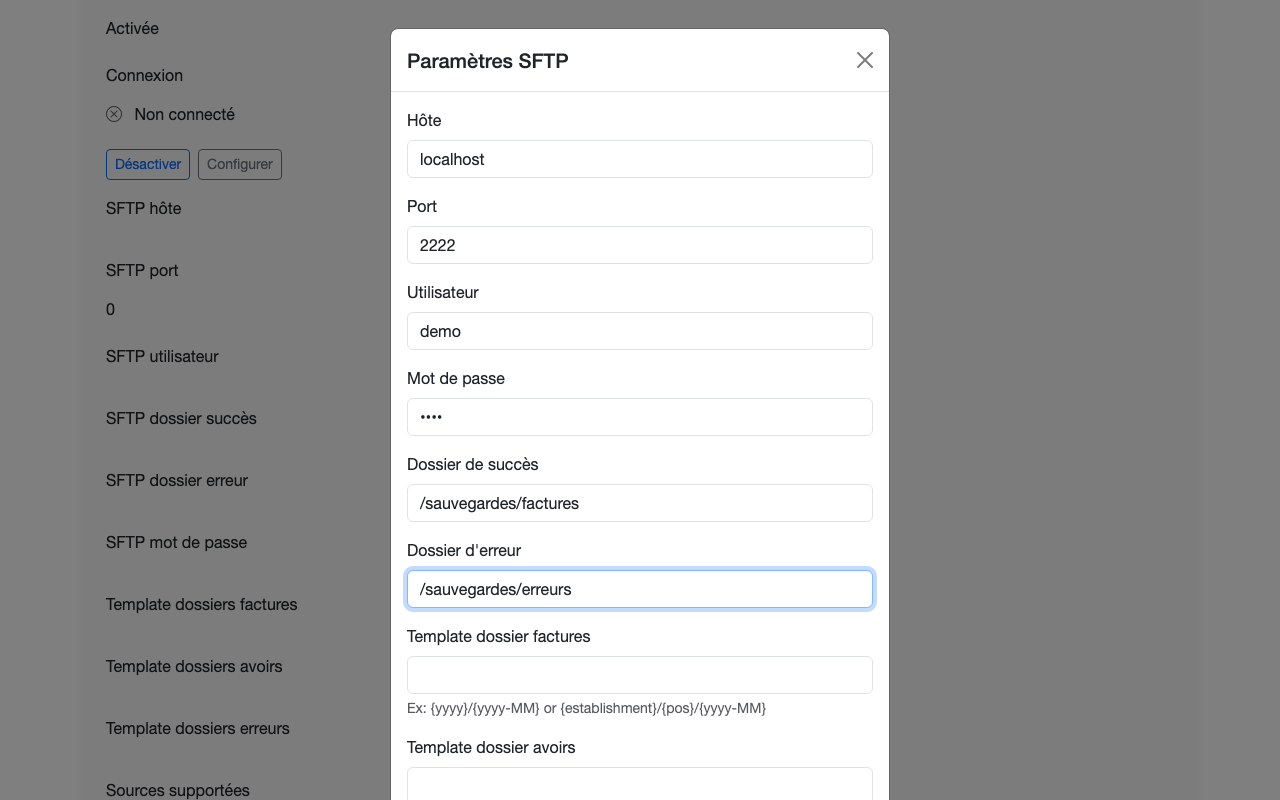
In the Paramètres SFTP (SFTP settings) window, enter the host, port, user, and password, then the dossier de succès (success folder — where to drop the certified PDFs) and the dossier d'erreur (error folder). Folder templates let you organize the files by period or by point of sale, for example {yyyy}/{yyyy-MM}.
3. Check the connection
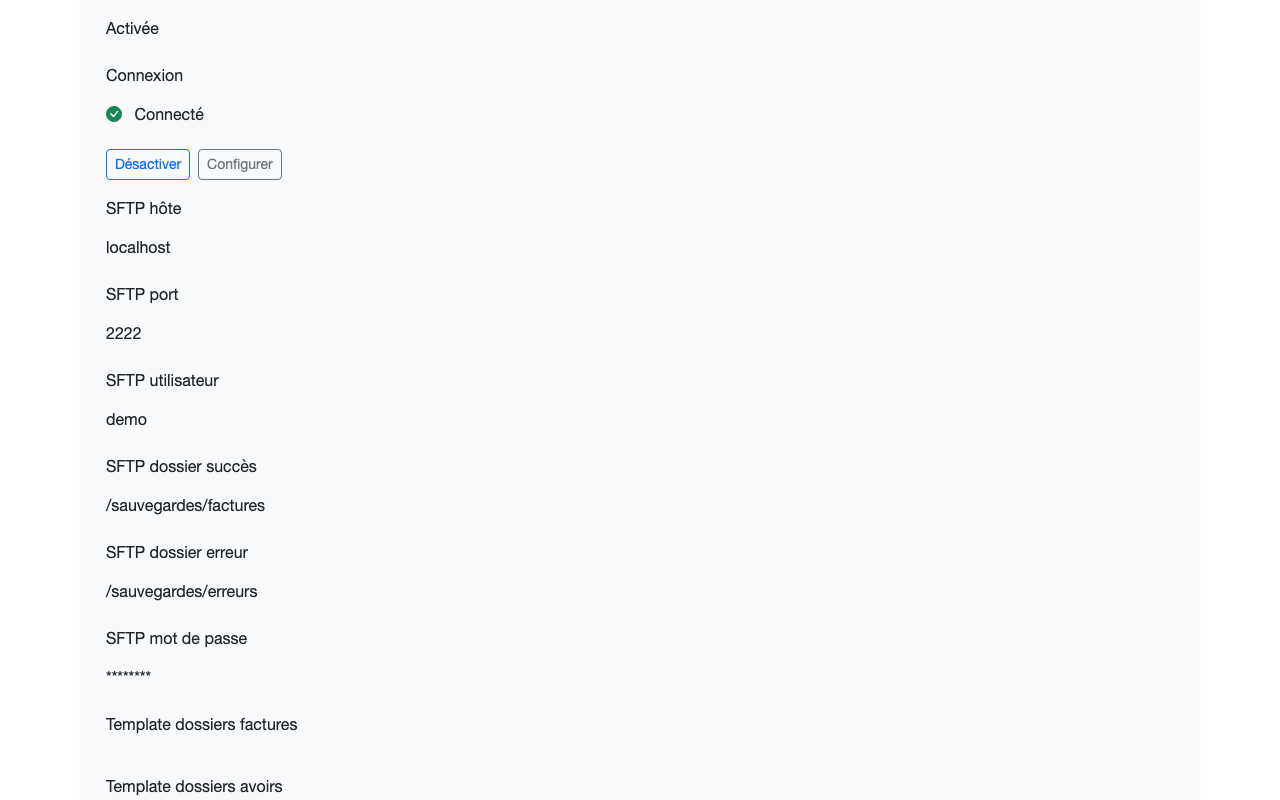
After saving, the section shows the connection state. Once Connecté (Connected), the module drops the PDFs as certifications happen, with no further action needed.
Google Drive and Azure Blob
The two other destinations follow the same Activer then Configurer logic. Google Drive is authorized with Connecter Google Drive (Connect Google Drive — OAuth), then Choisir le dossier via Google Drive (Pick the folder via Google Drive) designates the target folder and the error folder. Azure Blob asks for the storage account, the application ID, the tenant ID and the secret, then the outbound container and the rejection container; Tester la connexion (Test connection) checks it all.
What next?
The Collecte SFTP (SFTP collection) and Collecte Azure Blob (Azure Blob collection) sections cover the reverse path: see Configure automatic collection.
Changelog
- 2.0 (August 1, 2026): settings path, Azure and Google Drive fields corrected.
- 1.0 (July 12, 2026): document created.